작성자: Kai Life Editorial Team
If you lose time looking for work apps, files, or saved links, you can improve the situation with a short home-screen reset. In 15 minutes, prepare a temporary holding area, sort items by how you use them, place the most important tools where your hand and attention reach them easily, and schedule a brief review. The goal is not a visually perfect phone. It is a home screen that helps you find the next useful item with fewer decisions.
Before You Start: Define What “Easy to Find” Means
Phone organization becomes easier when you organize around actions rather than app names. A worker may need to check a calendar, respond to a message, open a document, and visit a project link. A solo business owner may need a payment dashboard, customer messages, a camera, an expense folder, and a social publishing tool. These items do not belong together because they come from the same company or have similar icons. They belong together because they support a task.
Choose one practical definition of success for this reset:
- Work tools are visible without searching through several pages.
- Frequently used personal tools do not compete with work tools.
- Files and links have a predictable place outside the home screen.
- Unused apps and distracting shortcuts create less visual noise.
Keep the scope narrow. This routine is for the home screen and the routes connected to it. It is not a complete photo archive, email cleanup, or cloud-storage migration. If you find a larger problem, write it down for a later session instead of allowing it to consume the 15-minute reset.
The Prepare–Sort–Act–Review Routine
1. Prepare: create a temporary holding area
Start by choosing a simple holding area for items you are unsure about. Depending on your phone, this could be a second screen, an existing utility folder, or a temporary note that lists items for later review. The holding area is not a permanent filing system. It gives you somewhere to move items while you decide.
Next, write down three to five actions you perform on the phone during a normal workday. For example:
- Check today’s schedule.
- Reply to an important message.
- Open a current project file.
- Review a business dashboard.
- Capture a photo, note, or receipt.
These actions will guide placement. They are more useful than a generic rule such as “put similar apps together,” because similar-looking apps can serve very different purposes.
2. Sort: separate essential, occasional, and uncertain items
Look at the first home-screen page and classify each item into three groups:
- Essential: used frequently or needed quickly when a task appears.
- Occasional: useful, but not part of the normal daily route.
- Uncertain: unfamiliar, duplicated, distracting, or no longer connected to a current task.
Move occasional and uncertain items away from the primary screen temporarily. This creates space for a clearer decision. Avoid deleting an app simply because it is not used every day. Check whether it supports travel, security, payments, accessibility, work continuity, or another occasional need. If you are unsure, leave it in the holding area and review it later.
Use folders when they reduce decisions, not merely because they make the screen look compact. A folder called “Work” may be useful if it contains a small set of tools you open together. A very large folder can become another place to search, so consider splitting it by action, such as “Communicate,” “Create,” or “Manage,” if that matches your routine.
3. Act: place tools by frequency, urgency, and context
Place high-use tools on the primary screen, but give them different positions according to the way you reach for them. A tool used several times a day can stay visible. A tool used only when a notification arrives may work better in a folder or search route. A tool containing sensitive information may deserve a less exposed location, depending on your device and privacy needs.
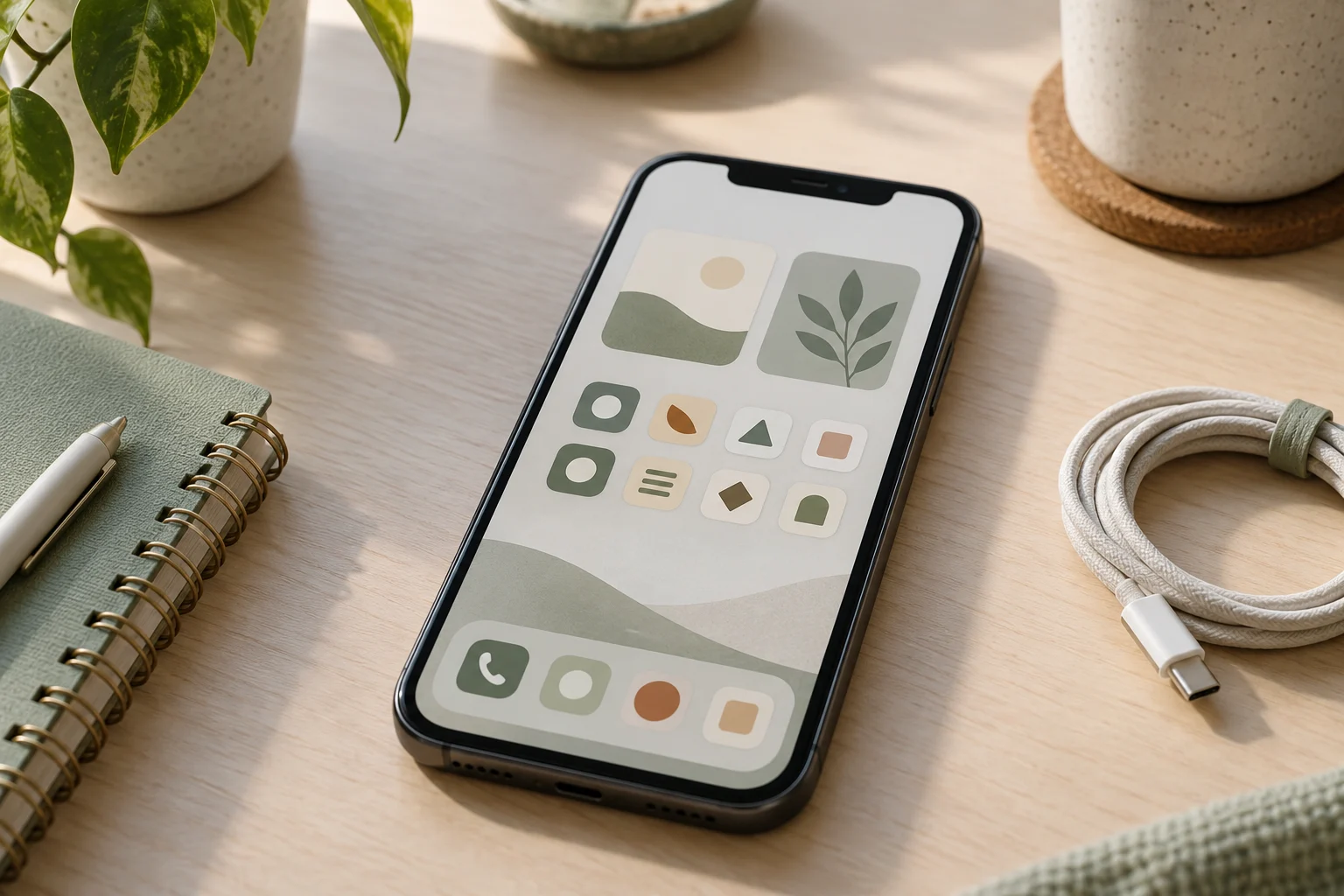
A practical layout can include:
- Primary action area: calendar, messages, notes, tasks, or another daily starting point.
- Work area: project, document, communication, or business tools.
- Capture area: camera, voice notes, scanning, or quick-entry tools.
- Occasional area: travel, shopping, finance, settings, and other less frequent tools.
Keep the bottom dock or equivalent persistent area for tools you open across multiple contexts. If your phone offers widgets, use them only when they answer a repeated question, such as “What is next?” or “What needs attention?” A widget that adds visual information without reducing a decision may increase clutter.
Do not place every work-related item on the first page. The purpose of digital organization is a reliable route, not maximum exposure. A simple folder, a device search shortcut, or a pinned document may be faster than scanning a crowded page.
4. Review: test the route with real tasks
Test the new layout using the actions you wrote down at the beginning. Start from the locked or idle state of the phone and try to reach each item. Notice where you hesitate. If an app is visible but its related file or link remains difficult to reach, the home-screen change is incomplete.
Record the remaining friction in a short note:
- Which app was difficult to locate?
- Which file needed a clearer folder or name?
- Which link is trapped in a message, email, or browser tab?
- Which folder contains more items than you can scan comfortably?
Make only one or two final changes during the 15-minute session. A later review can handle deeper cleanup without turning this routine into an open-ended project.
Connect the Home Screen to Files and Links
An organized home screen cannot compensate for unclear file and link storage. Use a small set of consistent destinations for the items you reach from your phone.
File organization
Choose folder names that describe the work or decision connected to the file. Names such as “Current Clients,” “Tax Records,” “Content Drafts,” or “Receipts to Review” may be more useful than vague labels such as “Miscellaneous.” Match the names to your actual responsibilities rather than copying a system that does not fit.
For active work, consider separating files by status, such as “In Progress,” “Waiting,” and “Reference,” if those stages help you decide what to do next. Avoid creating a new folder for every individual file. The structure should make retrieval easier without requiring a long series of taps.
Link management
Saved links often become invisible inside browser bookmarks, messages, or email threads. Collect links that support recurring work in one intentional place, such as a bookmark folder, a note, or a project document. Give the link a descriptive label that explains its purpose. “Weekly order report” is easier to recognize than a raw address or a label copied from a page title.
Review saved links for access and relevance. A link may require an account, redirect to a different page, or depend on information that has changed. If it is important, add enough context to help your future self understand why it was saved.
A Copyable 15-Minute Action Plan
| Time | Action | Output |
|---|---|---|
| 0–2 minutes | List three to five phone tasks you perform during work. | A task-based placement guide |
| 2–5 minutes | Move occasional and uncertain items to a temporary holding area. | More space for daily tools |
| 5–9 minutes | Place essential apps by frequency, urgency, and context. | A clearer primary screen |
| 9–12 minutes | Group related tools and check nearby files or links. | A connected route from app to information |
| 12–15 minutes | Test the layout with real tasks and note remaining friction. | A short follow-up list |
Use this checklist during the reset:
- [ ] I listed the phone tasks that matter most during work.
- [ ] I moved occasional or uncertain items away from the primary screen.
- [ ] I placed frequently used tools where they are easy to reach.
- [ ] I used folders only where they reduce searching.
- [ ] I checked the route from key apps to related files.
- [ ] I collected important links in a recognizable location.
- [ ] I tested the layout with real tasks.
- [ ] I wrote down deeper cleanup for another session.
Keep the System Useful Without Constant Rearranging
After the reset, resist changing the layout every time you install an app. Let new items stay in a secondary location until their role becomes clear. This creates a small review point instead of allowing every download to reshape the home screen.
Set a short review interval that fits your routine, such as once a week or at the end of a project. During the review, ask whether the primary screen still reflects your current work. If a tool has become central, move it closer. If an app has become occasional, move it away. If a file or link repeatedly causes hesitation, improve its name or storage location.
Also consider notification settings as part of digital organization. A crowded home screen and a crowded notification stream can create similar friction. Review which alerts support timely action and which can wait for a scheduled check. Device menus vary, so use the notification controls available on your phone and change them gradually.
FAQ
Should every app be on the first screen?
No. The first screen should support the actions you perform most often or need to reach quickly. Occasional tools can remain in folders, on another page, or in the device’s search system.
Is it better to organize apps by category or by task?
Task-based organization is often easier when you use several tools together to complete an activity. Category folders can still work for occasional tools or when your app collection is small. Choose the structure that reduces hesitation for your own routine.
How can I organize work links without adding many shortcuts?
Store recurring links in a small bookmark folder, note, or project document with descriptive labels. Add context when the purpose is not obvious, and review links that no longer support current work.
What should I do with apps I rarely use?
Move them away from the primary screen first. Before deleting anything, consider whether it supports an occasional need, account access, security process, or work continuity. If the decision is unclear, put it on a later review list.
Conclusion
A useful phone home screen is a navigation system for your actual work, not a display of every available app. In 15 minutes, you can list your key actions, separate essential from occasional tools, connect apps with files and links, and test the route with real tasks. Keep the layout modest, review it after your work changes, and let deeper cleanup happen in separate sessions.