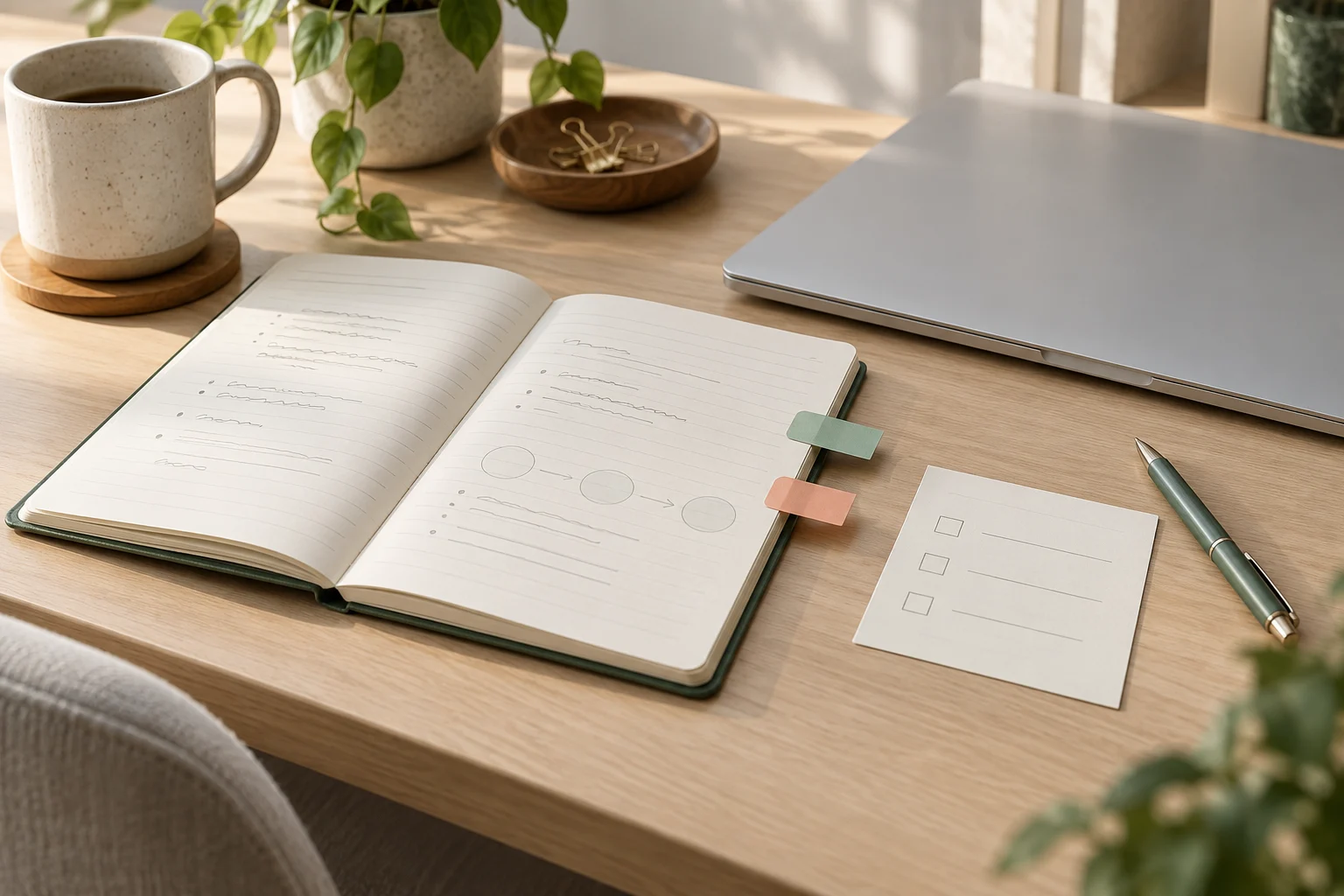
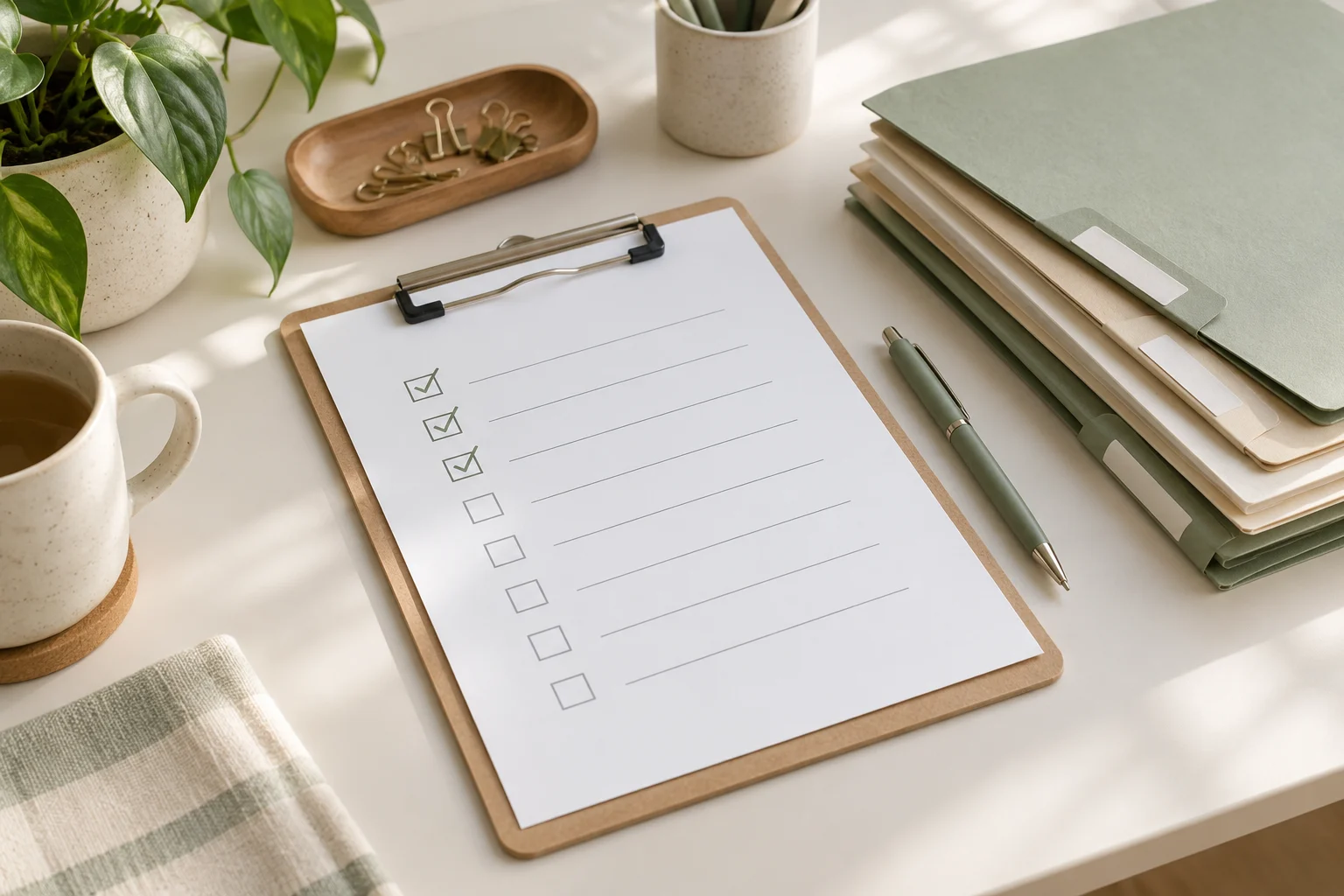
Work & Productivity

집중력과 업무 흐름을 정돈하는 현실적인 방법
Practical ways to improve focus and organize your workflow.

  • Daily Task Prioritization: A Three-Column Work Plan

    Daily Task Prioritization: A Three-Column Work Plan

    By Kai Life Editorial Team

    To prioritize today’s work, separate tasks you can start from tasks waiting on an input, then choose a short list that fits the time actually available. A three-column note—Do Today, Prepare or Wait, and Park for Later—makes that decision visible without replacing your project system.
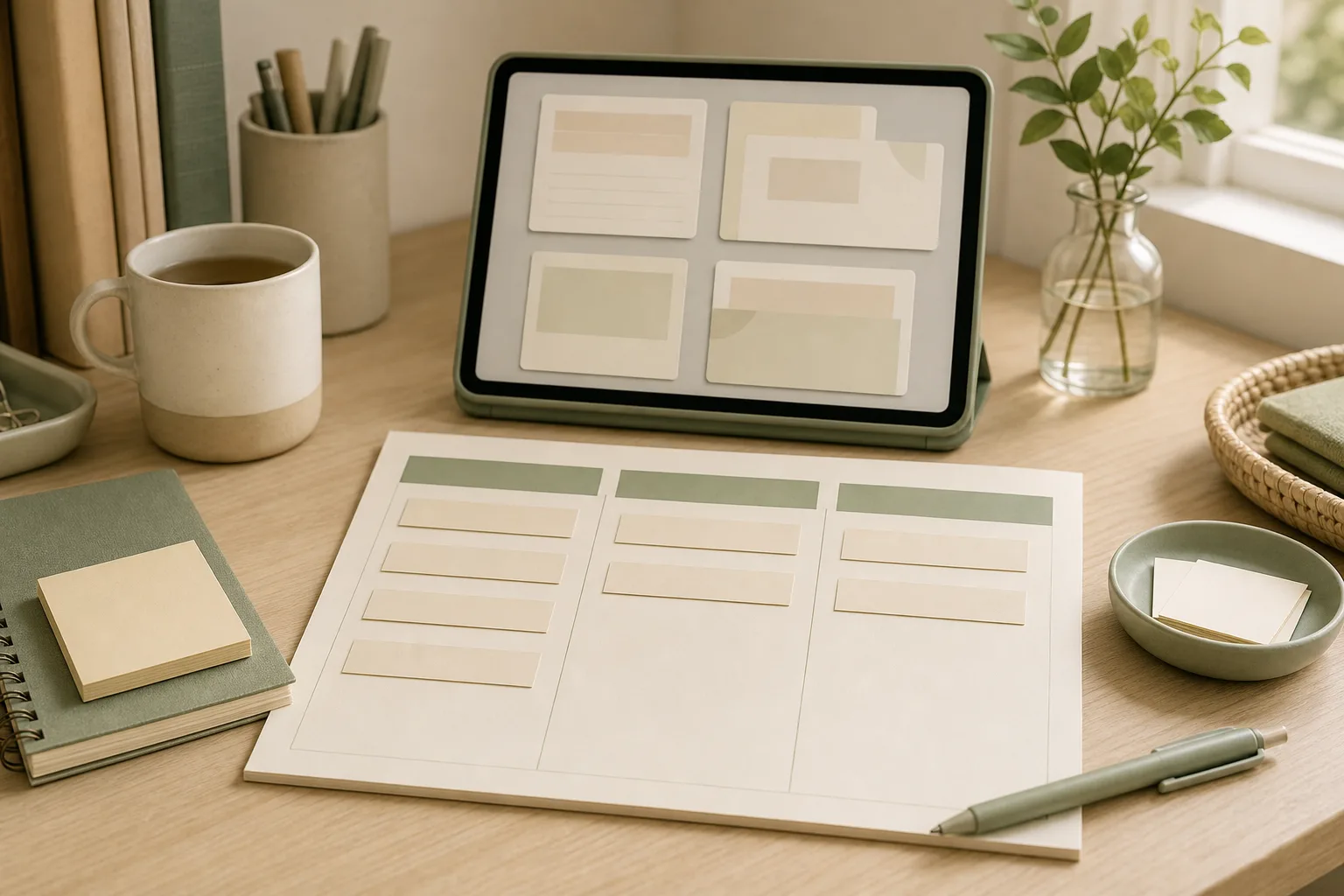
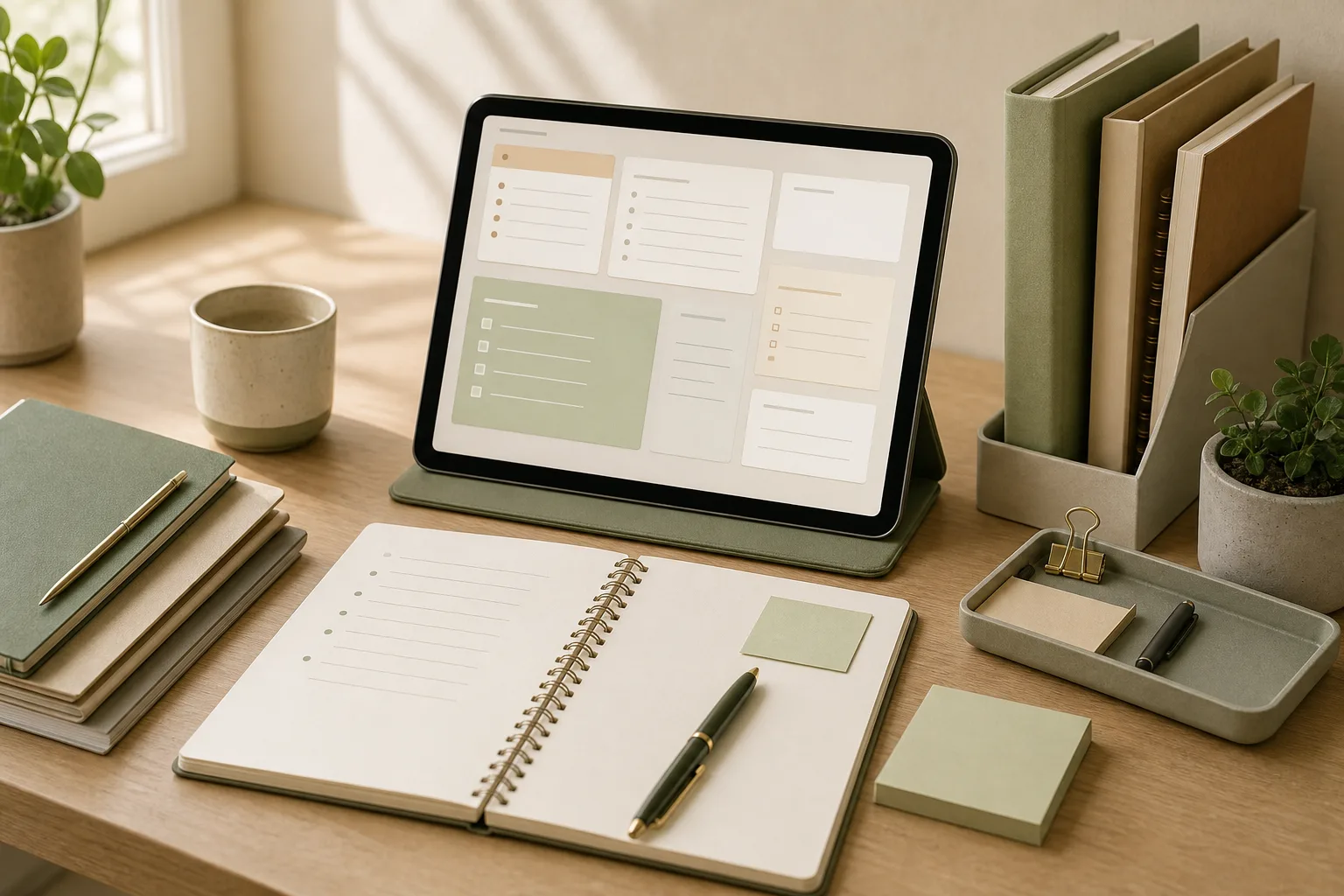
    A Three-Column Priority Note for Today’s Work — topic illustration

    Worked example: an 80-minute work window

    This is an invented planning example, not a measured productivity result. Assume meetings leave 80 minutes of open work time. The first draft of your list contains 90 minutes of work, so the list must change before it can become a useful plan.

    Incoming item Decision Next action
    Client update, estimated 35 minutes; due today Do Today Draft the update and check the three unresolved points.
    Meeting preparation, estimated 25 minutes; meeting today Do Today Write the agenda questions and link the background file.
    Slide redesign, estimated 30 minutes; no near deadline Park for Later Record the first change to test, then move it off today’s list.
    Report blocked by another person’s figures Prepare or Wait Send one request with the missing input and the time it is needed.

    The revised example allocates 60 minutes to the two ready tasks, leaving 20 minutes unassigned for transitions or unexpected work. Those estimates are planning assumptions, not promises that the tasks will finish on time.

    A rule for a new urgent request

    Before adding it to Do Today, name the item it displaces. If everything remains on the list, you have not resolved the priority conflict. Ask the relevant owner to choose the trade-off when deadlines cannot all be met.

    Copy this line: “I can complete A and B in the available time. If C becomes the priority, which item should move?”

    The three-column priority note

    The note is designed for practical work organization rather than a complete project-management system. It gives every task a temporary home and reduces the need to repeatedly reconsider the same list.

    Column Use it for Example
    Do Today Work that has a meaningful reason to move today and can be started with the information available. Draft the two-paragraph update for the 3 p.m. review.
    Prepare or Wait Tasks blocked by a question, approval, file, meeting, or response from another person. Ask for the latest figures before updating the report.
    Park for Later Useful work that is not needed in the current workday or does not fit the available capacity. Collect ideas for next month’s process guide.

    Keep the wording action-based. “Client project” is a topic, while “confirm the open items for the client project” is a next action. If a task is too large to begin, add a smaller first step such as “open the previous version,” “list the three missing inputs,” or “write the question for the meeting.”

    A four-step routine for today’s work

    1. Prepare: collect before you prioritize

    Set a short timer and gather tasks from the places you already use: email flags, chat messages, meeting notes, paper reminders, and the previous day’s list. Do not try to organize each item while collecting it. Capture enough detail to recognize the task later.

    For repeated tasks, use a consistent verb at the start of each line: review, reply, draft, check, schedule, compare, or send. This makes a work checklist easier to scan and helps separate actions from general concerns.

    2. Sort: give each item one temporary home

    Move each item into one of the three columns. Ask three practical questions:

    • Is there a clear reason to move this forward today?
    • Can I begin it with the information and access I have?
    • If not today, what event or condition would bring it back?

    Items with a time-sensitive commitment may belong in Do Today, but the column should remain small enough to be realistic. Items waiting for a reply belong in Prepare or Wait; write the next follow-up date or question beside them. Items without a current reason to act can go to Park for Later, where they remain visible without competing with today’s work.

    3. Act: choose a short sequence, not a perfect schedule

    Choose one starting task, one secondary task, and a small number of maintenance actions such as replies or filing. Begin with the task that has the clearest next action, the nearest useful checkpoint, or the greatest effect on other work. The right choice can change when a manager replies, a meeting moves, or new information arrives.

    Use the Prepare or Wait column actively. Send the question, request the file, or record the decision needed. A blocked task that has a named follow-up is easier to revisit than a blocked task that simply remains in a list.

    4. Review: close the loop before stopping

    At the end of the work period, spend a few minutes updating the note. Mark completed actions, move unfinished work to the correct column, and write the next action for anything that remains. Avoid carrying a vague item forward unchanged.

    For a weekly review, look across the notes from the past few days. Identify repeated delays, recurring requests, and tasks that repeatedly return from Park for Later. This is not a request to redesign your entire workflow. It is a way to notice whether a recurring task needs a template, a clearer owner, a meeting decision, or a scheduled block of time.

    A 15-minute action plan

    1. Minutes 1–4: Collect tasks from messages, meeting notes, and yesterday’s note.
    2. Minutes 5–8: Sort every item into Do Today, Prepare or Wait, or Park for Later.
    3. Minutes 9–12: Choose the first action and write any questions, dependencies, or follow-up dates.
    4. Minutes 13–15: Put the note where it will be visible and remove duplicate or unclear lines.

    After this setup, keep the note open beside the work you are doing. When a new request arrives, capture it in the appropriate column instead of immediately replacing the task already in progress. Re-sort during a natural pause, such as after a meeting or before a break.

    Copyable daily template

    DATE:
    TODAY’S MAIN OUTCOME:
    
    DO TODAY
    - [ ] Action / next step — useful checkpoint:
    - [ ] Action / next step — useful checkpoint:
    - [ ] Action / next step — useful checkpoint:
    
    PREPARE OR WAIT
    - [ ] Waiting for / question — person or source — follow-up date:
    - [ ] Waiting for / question — person or source — follow-up date:
    
    PARK FOR LATER
    - [ ] Task or idea — revisit when:
    - [ ] Task or idea — revisit when:
    
    END-OF-DAY REVIEW
    - Completed:
    - Moved to another column:
    - First action for the next work period:

    The template can live in a plain text file, a document, a notebook, or an existing task tool. The value comes from the decisions recorded in it, not from a particular format.

    Using the note for meeting notes

    Meeting notes often mix decisions, information, open questions, and future ideas. After a meeting, translate each useful line into one of the three columns:

    • Decision with an owner: place your next action in Do Today only when today is the appropriate time to begin.
    • Open question or missing input: place the follow-up in Prepare or Wait and name the person, document, or decision needed.
    • Future idea: place it in Park for Later with a review point if one is known.

    This separation helps prevent meeting notes from becoming a second, unstructured task list. Keep the original context elsewhere if needed, but bring only the actionable next step into the daily note.

    A short checklist for repeated tasks

    • Capture: Did I record the task in one place rather than relying on memory?
    • Clarify: Does each line begin with an action or a clearly stated question?
    • Sort: Is the item in the column that matches its current timing and dependency?
    • Limit: Can the Do Today column fit the time and attention available?
    • Unblock: Have I sent the request or written the question for waiting work?
    • Review: Does every unfinished item have a next action or a reason to wait?

    Common adjustments when the system feels strained

    Too many items in Do Today

    Move items without a current checkpoint to Park for Later. For urgent requests, compare deadlines, dependencies, and the cost of delaying existing work. If priorities conflict, record the conflict and ask the relevant decision-maker rather than silently expanding the list.

    Prepare or Wait keeps growing

    Add a specific follow-up date and make the dependency visible. If several tasks wait on the same input, group them under one request. A waiting list can reveal a communication or ownership issue, but it does not by itself resolve one.

    Park for Later becomes a storage pile

    During the weekly review, remove ideas that no longer matter and give useful items a review condition. For example, “revisit after the next process meeting” is easier to act on than “someday.”

    FAQ

    Should every task have a deadline?

    No. A deadline is useful when there is a real date or consequence. For other items, use a next review point, dependency, or decision condition instead of inventing a date.

    How many tasks should go in Do Today?

    Use the time and attention available as the limit. A short list of meaningful actions is generally easier to update than a long list that treats every task as equally urgent. The exact number depends on the workday, interruptions, and task size.

    Can this replace a project-management tool?

    It can serve as a daily working note, but it may not replace tools used for shared ownership, approvals, deadlines, audit history, or complex dependencies. Keep the source of truth for team work where your organization expects it, and use this note as a focused daily view.

    What should happen to a new urgent request?

    Capture it first, then compare it with the current Do Today list. If it changes the order of work, note what will move and communicate that trade-off when another person’s expectation is affected.

    Conclusion

    A three-column priority note offers a small structure for a busy workday: act on what is ready, make blocked work easier to unblock, and keep later ideas from competing with current commitments. The four-step cycle—prepare, sort, act, and review—turns the note into a repeatable work checklist. Start with the 15-minute setup, adjust the column names to match your language, and review the system after several workdays for patterns that deserve a larger process change.
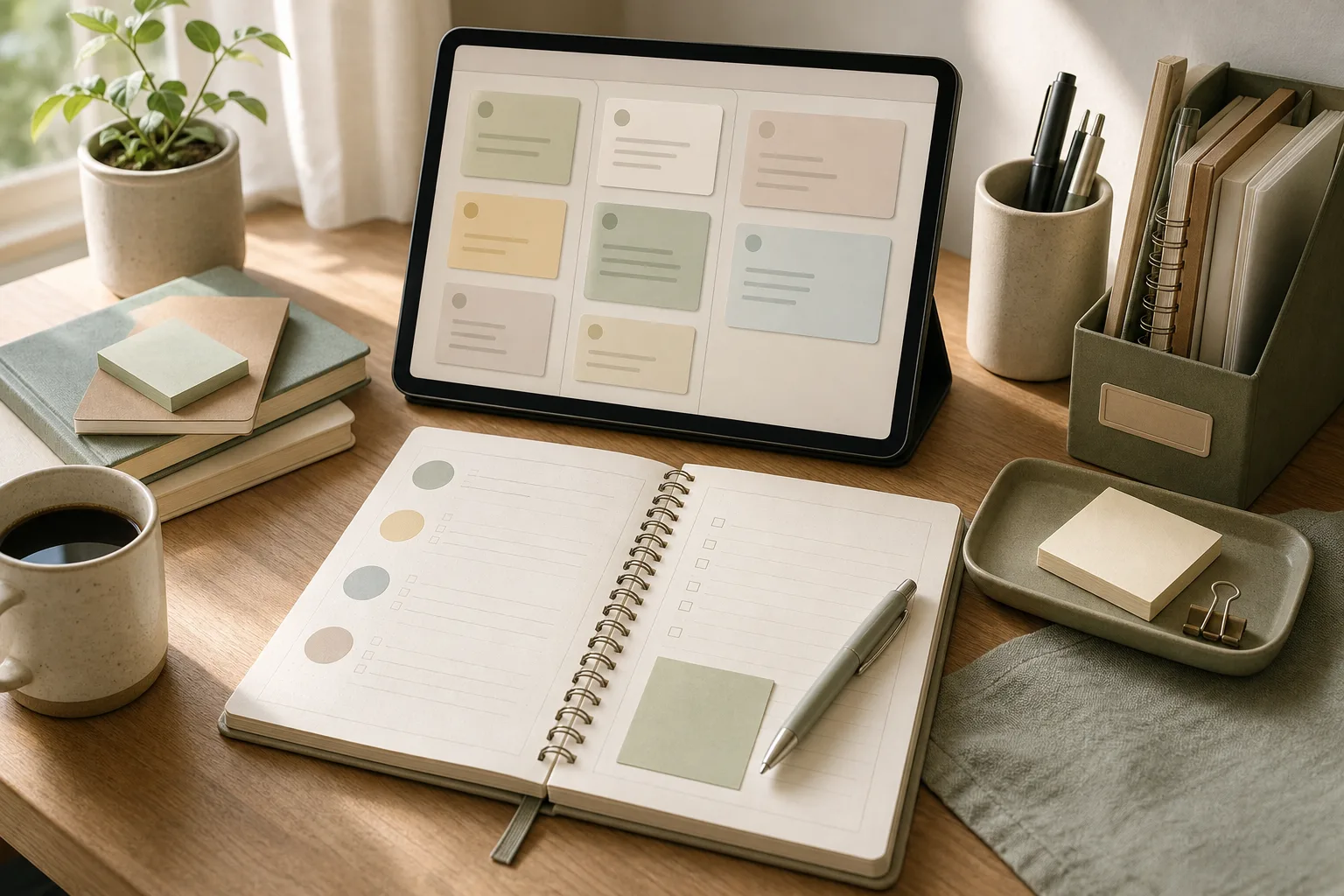

  • 업무 정리와 주간 업무 회고를 15분에 끝내는 실행 루틴

    업무 정리와 주간 업무 회고를 15분에 끝내는 실행 루틴

    작성자: Kai Life 편집팀

    주간 업무 회고를 15분에 끝내려면 한 주를 길게 평가하려고 하기보다, 흩어진 업무를 모으고 다음 행동을 정하는 데 집중하면 됩니다. 순서는 준비 3분, 분류 4분, 실행 5분, 점검 3분입니다. 이때 모든 일을 자세히 기록하는 대신 완료한 일, 남은 일, 막힌 일, 다음 주에 먼저 처리할 일을 구분하는 것이 핵심입니다.

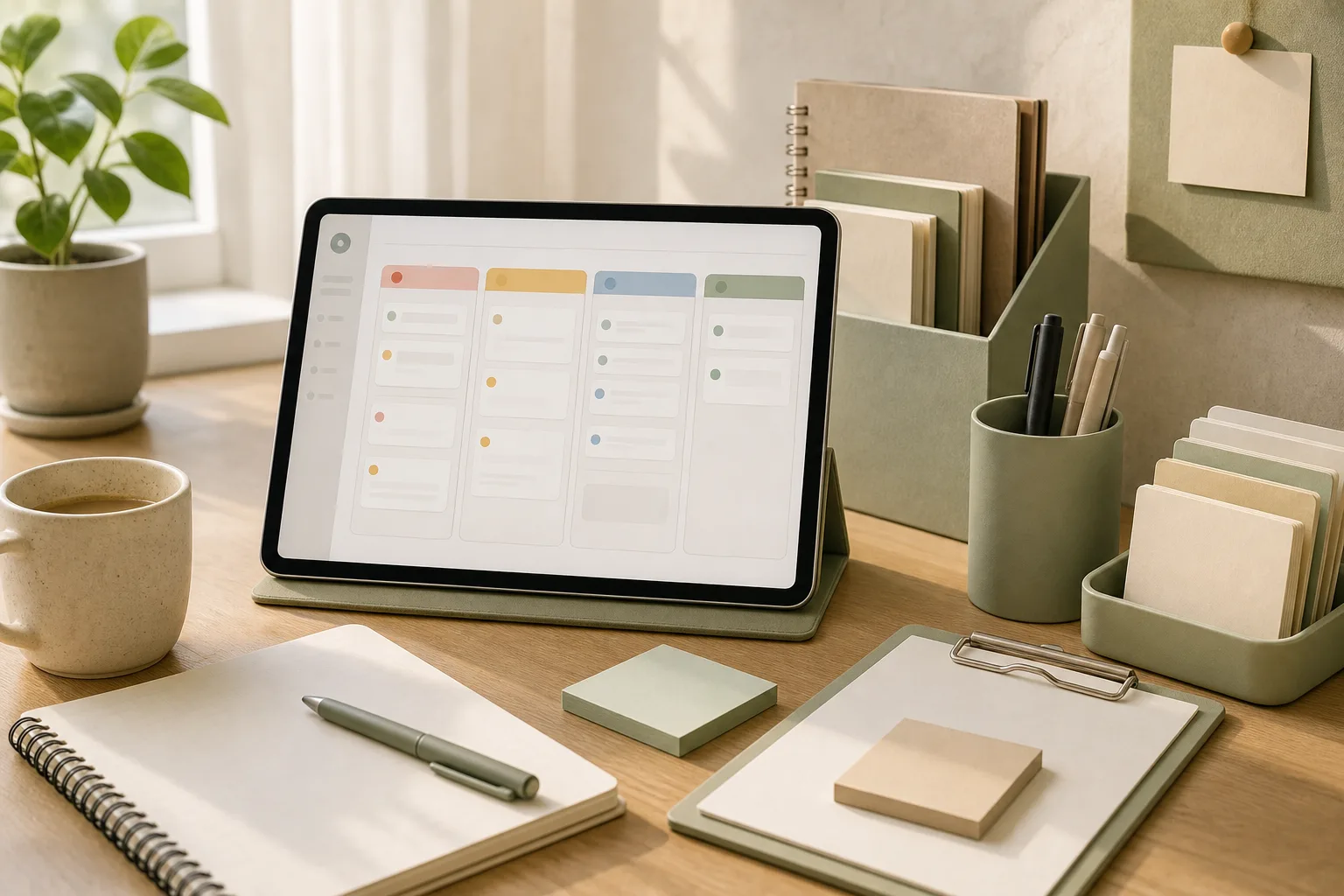
    업무 정리와 주간 업무 회고를 15분에 끝내는 실행 루틴 — 주제 설명 이미지

    왜 주간 업무 회고가 길어지는가

    회고가 예상보다 오래 걸리는 이유는 회고와 업무 분석을 한 번에 하려고 하기 때문입니다. 지난 한 주의 모든 대화와 파일을 다시 읽거나, 잘한 점과 아쉬운 점을 문장으로 완성하려 하면 정리 자체가 새로운 업무가 됩니다.

    15분 회고에서는 다음 세 가지를 구분해 두는 편이 좋습니다.

    • 기록: 이번 주에 실제로 처리했거나 진행한 일
    • 판단: 계속할 일, 줄일 일, 보류할 일
    • 행동: 다음 주에 누가 무엇을 언제까지 할지 정하는 일

    특히 회고 중에 새 업무를 바로 시작하면 시간이 쉽게 늘어납니다. 떠오른 아이디어는 실행하지 말고 메모만 남긴 뒤, 정해진 점검이 끝난 후 별도의 업무 목록에서 다루는 것이 좋습니다.

    15분 실행표: 준비·분류·실행·점검

    시간 단계 할 일 남길 결과
    0~3분 준비 캘린더, 업무 목록, 회의 메모를 한곳에 모읍니다. 검토할 업무 원자료
    3~7분 분류 완료·진행·대기·보류로 나눕니다. 상태가 구분된 업무 목록
    7~12분 실행 다음 주의 핵심 업무와 첫 행동을 정합니다. 우선순위와 다음 행동
    12~15분 점검 누락, 일정 충돌, 확인이 필요한 사람을 살핍니다. 공유·확인·수정할 항목

    1단계: 준비 3분

    먼저 자료를 모읍니다. 업무 관리 도구를 여러 개 사용한다면 모든 내용을 한곳에 옮기기보다, 이번 주 판단에 필요한 자료만 확인합니다. 다음 네 가지가 기본 자료가 될 수 있습니다.

    • 이번 주 캘린더와 마감 일정
    • 현재 업무 목록
    • 회의 메모와 후속 조치
    • 아직 답을 받지 못한 요청이나 대기 항목

    준비 단계에서 중요한 것은 정리 방식의 완성도가 아니라 누락을 줄이는 것입니다. 예를 들어 회의 메모를 처음부터 다시 다듬지 말고, 후속 행동이 적혀 있는 부분만 찾아도 충분합니다.

    2단계: 분류 4분

    각 업무 옆에 상태를 하나씩 붙입니다. 상태가 애매하면 두 가지를 동시에 표시하지 말고, 지금 필요한 다음 행동을 기준으로 선택합니다.

    • 완료: 추가 행동이 없어도 되는 일
    • 진행: 다음 단계가 남아 있고 직접 이어서 처리할 일
    • 대기: 다른 사람의 답변, 자료, 승인 등을 기다리는 일
    • 보류: 당장 진행하지 않기로 결정한 일

    ‘대기’와 ‘보류’를 구분하면 업무 정리가 더 선명해집니다. 대기는 외부 응답이나 조건이 충족되면 다시 움직일 일이고, 보류는 현재 우선순위에서 의도적으로 뒤로 미룬 일입니다. 두 항목을 섞으면 다음 주에 확인해야 할 일과 당분간 잊어도 되는 일이 함께 쌓일 수 있습니다.

    3단계: 실행 5분

    이 단계에서는 다음 주의 업무를 모두 확정하려고 하지 않습니다. 먼저 중요한 업무를 소수로 고르고, 각 업무의 첫 행동을 적습니다. ‘보고서 작성’처럼 넓은 표현보다 ‘지난 회의 자료에서 숫자 세 개 확인’처럼 바로 시작할 수 있는 표현이 적합합니다.

    우선순위를 정할 때는 다음 질문을 차례로 사용해 보세요.

    1. 다음 주에 마감이나 약속이 정해진 일은 무엇인가?
    2. 다른 사람의 작업을 막고 있는 일은 무엇인가?
    3. 미루면 재작업이나 일정 충돌이 커질 수 있는 일은 무엇인가?
    4. 이번 주에 하지 않아도 되는 일은 무엇인가?

    이 질문에 답한 뒤 우선순위가 높은 업무에는 ‘첫 행동’과 ‘확인 시점’을 붙입니다. 첫 행동은 10분에서 30분 안에 시작할 수 있을 정도로 작게 쪼개고, 확인 시점은 업무를 다시 볼 날짜나 상황으로 적습니다.

    4단계: 점검 3분

    마지막 3분은 새 업무를 추가하는 시간이 아니라 정리한 내용의 허점을 확인하는 시간입니다. 일정이 겹치는지, 대기 중인 사람에게 확인할 필요가 있는지, 회의에서 나온 후속 조치가 빠지지 않았는지 살펴봅니다.

    특히 다음 주 캘린더에 이미 잡힌 회의와 집중 업무 시간을 함께 확인하세요. 시간은 충분하다고 생각했지만 실제로는 회의와 이동, 확인 작업으로 나뉘는 경우가 있습니다. 이런 경우 우선순위를 낮추거나 첫 행동을 더 작게 조정할 수 있습니다.

    복사해서 쓰는 업무 정리 체크리스트

    아래 체크리스트는 메모 앱이나 문서에 복사해 매주 같은 순서로 사용할 수 있습니다. 모든 칸을 길게 채우기보다 판단에 필요한 짧은 문장만 적는 것이 좋습니다.

    • [ ] 캘린더와 현재 업무 목록을 확인했다.
    • [ ] 이번 주 완료한 업무를 표시했다.
    • [ ] 진행 중인 업무의 다음 단계를 적었다.
    • [ ] 다른 사람의 응답을 기다리는 업무를 구분했다.
    • [ ] 당장 진행하지 않을 업무를 보류로 표시했다.
    • [ ] 다음 주 우선순위가 높은 업무를 골랐다.
    • [ ] 각 우선 업무의 첫 행동을 구체적으로 적었다.
    • [ ] 회의 메모에서 후속 조치를 확인했다.
    • [ ] 확인이 필요한 사람과 확인 시점을 적었다.
    • [ ] 일정 충돌이나 처리할 수 없는 양을 조정했다.

    회의 메모를 주간 업무 정리에 연결하는 방법

    회의 메모는 기록으로만 남으면 업무 목록과 분리되기 쉽습니다. 회의가 끝난 뒤 또는 주간 회고 중에 메모를 다음 세 가지로만 나누면 연결이 간단해집니다.

    회의 메모의 내용 업무 정리에서 바꿀 형태 예시 표현
    결정된 내용 완료 또는 기준으로 기록 “이번 일정은 금요일 기준으로 진행”
    해야 할 일 담당자와 첫 행동 추가 “자료 초안의 누락 항목 확인”
    확인할 내용 대기 항목으로 분리 “담당자에게 최종 수치 확인 요청”

    회의 메모에 모든 발언을 보존할 필요가 있는지는 문서의 목적에 따라 달라집니다. 주간 업무 정리에서는 다음 행동과 책임 주체를 놓치지 않는 것이 우선입니다. 상세한 논의 기록이 필요한 회의라면 원문을 별도로 보관하고, 업무 목록에는 후속 조치만 연결하세요.

    15분 루틴을 유지하기 위한 조정 기준

    매주 같은 시간을 확보하더라도 업무량이나 일정에 따라 15분 안에 모든 내용을 다루기 어려울 수 있습니다. 이때 회고 시간을 무리하게 늘리기보다 범위를 조정하는 편이 현실적입니다.

    • 업무가 많을 때는 완료한 일의 설명을 줄이고 미완료·대기 항목을 먼저 확인합니다.
    • 회의가 많았던 주에는 회의 메모의 후속 조치만 추려서 검토합니다.
    • 다음 주에 큰 마감이 있을 때는 우선순위와 첫 행동을 먼저 정하고 회고 설명은 짧게 씁니다.
    • 업무가 적었던 주에는 보류한 일의 재개 여부와 반복 작업의 개선점을 살핍니다.
    • 목록이 지나치게 길면 우선순위를 낮추는 것이 아니라, 이번 주에 다루지 않을 항목을 별도 목록으로 이동합니다.

    15분은 모든 문제를 해결하는 제한 시간이 아니라, 다음 판단을 위한 최소한의 정리 시간입니다. 복잡한 프로젝트의 일정 조정이나 이해관계자 협의까지 같은 시간 안에 끝내려 하면 루틴의 목적이 흐려질 수 있습니다.

    자주 묻는 질문

    주간 회고를 금요일과 월요일 중 언제 해야 하나요?

    두 시점 모두 사용할 수 있습니다. 금요일에는 완료·미완료·대기 항목을 정리하기 좋고, 월요일에는 일정과 우선순위를 다시 맞추기 좋습니다. 업무가 금요일에 계속 변한다면 금요일에는 짧게 수집만 하고 월요일에 우선순위를 확정하는 방식도 가능합니다.

    우선순위가 높은 업무를 몇 개 정해야 하나요?

    정해진 정답은 없습니다. 중요한 것은 목록 전체를 우선순위 높음으로 표시하지 않는 것입니다. 실제 일정과 집중할 수 있는 시간을 고려해 먼저 처리할 업무와 나중에 처리할 업무를 구분하고, 각 업무에 첫 행동을 붙여 실행 가능성을 확인하세요.

    완료하지 못한 업무는 매주 다음 주 목록으로 옮기면 되나요?

    그대로 반복해서 옮기기보다 미완료 이유를 짧게 확인하는 것이 좋습니다. 자료 부족, 다른 업무의 선행 필요, 우선순위 변경, 작업 범위 과다 등 이유에 따라 다음 행동이 달라집니다. 계속 미뤄지는 업무라면 범위를 줄이거나 보류 여부를 다시 판단할 수 있습니다.

    결론: 회고의 목적은 기록이 아니라 다음 행동 정하기

    15분 주간 업무 회고는 한 주를 완벽하게 평가하는 시간이 아닙니다. 캘린더와 업무 목록, 회의 메모를 모은 뒤 완료·진행·대기·보류로 나누고, 다음 주의 우선순위와 첫 행동을 정하는 짧은 업무 정리 과정입니다.

    처음에는 15분 안에 모든 항목을 다루지 못할 수 있습니다. 그럴 때는 기록을 더 자세히 쓰기보다 준비 자료를 줄이고, 대기 업무와 다음 행동을 먼저 확인하세요. 같은 질문과 체크리스트를 반복해 사용하면 회고 방식이 개인의 업무 흐름에 맞게 조정될 수 있습니다.


  • A 15-Minute Weekly Work Review: Six Questions to Organize Your Week

    A 15-Minute Weekly Work Review: Six Questions to Organize Your Week

    작성자: Kai Life Editorial Team

    A 15-minute weekly work review can give you a clearer starting point for the next few workdays. The aim is not to rebuild your entire task system. Instead, collect loose information, identify the few items that need attention, and decide the next visible action for each priority.

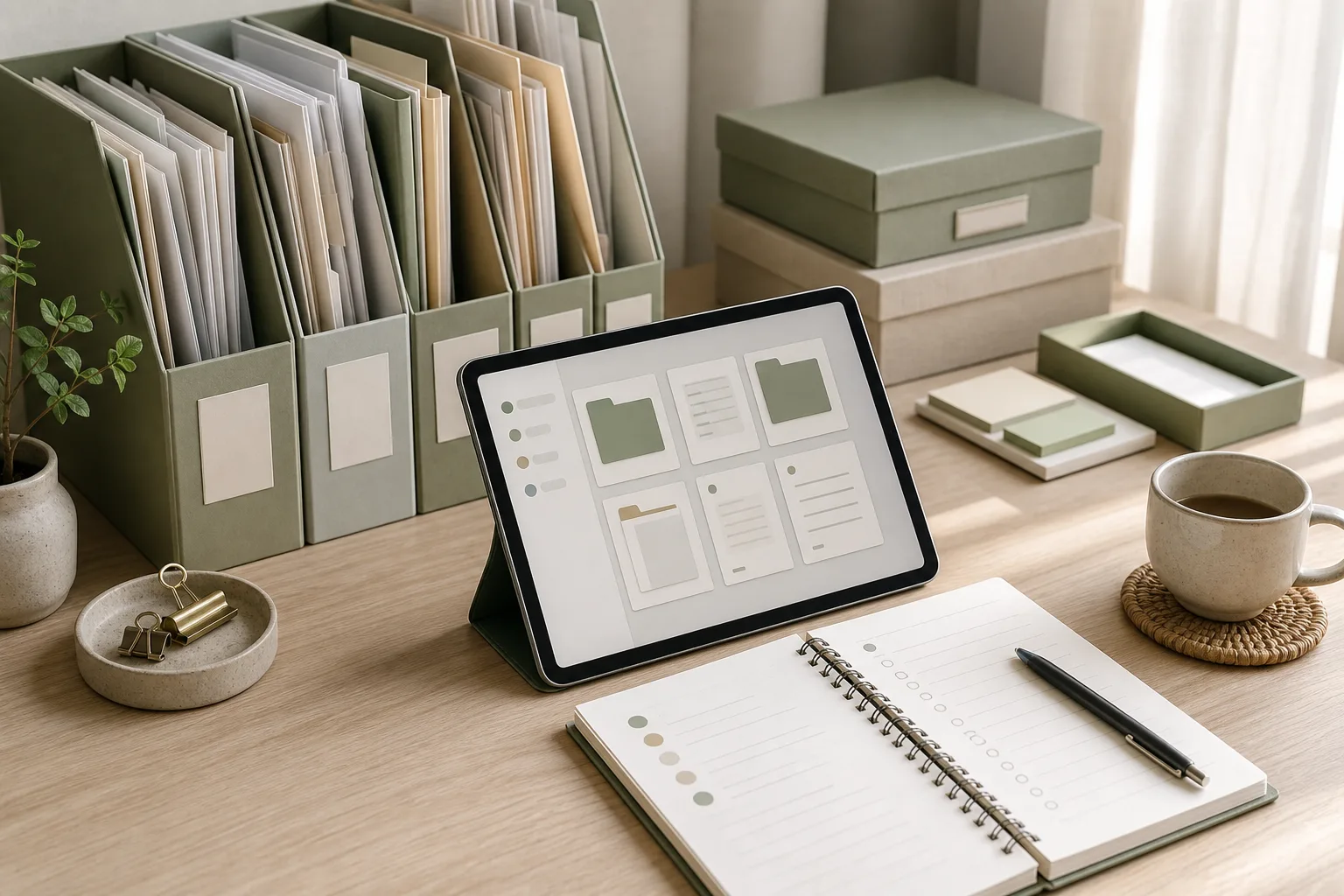
    A 15-Minute Weekly Work Review: Six Questions to Organize Your Week — topic illustration

    This routine uses six questions in four stages: prepare, sort, act, and review. You can complete it with a notebook, a plain text file, or the tools you already use for tasks and meeting notes.

    The six questions for a weekly work review

    1. What is still open? Gather unfinished tasks, promises, follow-ups, meeting notes, and ideas from the past week.
    2. What changed? Mark new information, changed deadlines, blocked work, and requests that affect your plans.
    3. What matters most next? Choose the small set of outcomes that deserve attention before lower-value work.
    4. What is the next physical or digital action? Convert each important item into a concrete step that can be started.
    5. What needs a person, decision, or boundary? Identify items waiting on someone else, unclear requests, and work that needs a scope or time limit.
    6. When will I look again? Place a review point or reminder so open loops do not depend on memory alone.

    The questions are intentionally plain. A review becomes harder to maintain when it requires complicated labels, extensive scoring, or a separate system for every type of work.

    Prepare: collect information without organizing it yet

    Begin by opening the places where work has accumulated. These may include your task list, calendar, email flags, meeting notes, chat messages, project documents, and a paper notebook. Do not try to solve each item during this first pass.

    Question 1: What is still open?

    Write down incomplete work and commitments that could otherwise remain hidden. Include small items such as sending a file, checking a detail, confirming an appointment, or returning a message. A short list is easier to review when each line describes one item.

    Use neutral wording. “Client project” is broad, while “add the revised timeline to the project document” gives you a clearer starting point. You can refine vague items later.

    Question 2: What changed?

    Scan the past week for changes rather than rereading every message. Look for:

    • new deadlines or shifted deadlines;
    • requests that changed in scope;
    • decisions made in meetings;
    • tasks blocked by missing information;
    • items that no longer need action.

    For meeting notes, capture the decision, the owner, and the next follow-up. If one of those details is missing, mark it as an open question instead of assuming the answer.

    Sort: choose priorities and clarify the work

    After collecting information, reduce the list. A weekly review is not a second inbox. It is a short decision point about where your attention should go next.

    Question 3: What matters most next?

    Choose a limited number of priority outcomes for the coming week. The right number depends on your workload, role, and deadlines, so avoid treating a fixed number as a universal rule. A useful priority should describe an outcome, not just an activity.

    For example, “work on presentation” is difficult to evaluate. “Complete the first draft of the presentation for internal review” gives the item a clearer finish line. If several items compete, consider:

    • which deadline is closest or least flexible;
    • which item affects other people’s ability to work;
    • which decision would remove a significant delay;
    • which commitment has already been made;
    • which task supports the most important current outcome.

    Items that do not belong in the next week can be moved to a later list, parked with a review date, or deleted if they no longer represent a real commitment.

    Question 4: What is the next physical or digital action?

    Break each priority into a first step that can be done without further interpretation. Useful action verbs include draft, compare, send, schedule, confirm, outline, review, upload, or ask.

    If the next step is “wait for an answer,” record who needs to respond, what you are waiting for, and when you will follow up. If the item is too large for one sitting, write the next part rather than listing the whole project as a task.

    Question 5: What needs a person, decision, or boundary?

    Some work stays open because it is not a task problem. It may require a decision, clarification, approval, or conversation. Label these items so you do not repeatedly treat them as personal execution work.

    Examples include:

    • asking a colleague to confirm which version is current;
    • requesting a decision before continuing a draft;
    • setting a response time for a non-urgent request;
    • agreeing on what will not fit within the available time;
    • recording an assumption that could affect the result.

    A boundary can be a time limit, a defined deliverable, or a statement of what is outside the current scope. This makes the work easier to discuss with others and easier to revisit later.

    Act and review: turn the list into a usable plan

    Question 6: When will I look again?

    Give important open items a future review point. This may be a calendar reminder, a dated task, or a line in next week’s review note. The purpose is not to predict every detail. It is to create a reliable place where unfinished work can be reconsidered.

    Then place the next actions where you will see them during the week. Keep the working list short enough to scan. Supporting detail can stay in project notes, while the weekly list shows the next action and any relevant date.

    A 15-minute action plan

    Time Stage Action
    0–3 minutes Prepare Collect open tasks, calendar items, meeting notes, messages, and loose reminders.
    3–6 minutes Sort Mark what changed and remove items that are no longer active.
    6–10 minutes Prioritize Choose the next important outcomes and write one next action for each.
    10–13 minutes Clarify Identify waiting items, needed decisions, follow-ups, and scope boundaries.
    13–15 minutes Review Add dates or reminders, place the list where you work, and note the first starting action.

    If the review reaches 15 minutes with unresolved questions, record those questions and stop. A short review can be more sustainable when it has a clear endpoint. Complex project planning can happen separately when it is genuinely needed.

    Copyable weekly work checklist

    Copy the following template into your preferred notes or task tool:

    WEEKLY WORK REVIEW
    Date:
    
    PREPARE
    [ ] Open tasks collected
    [ ] Calendar and meeting notes checked
    [ ] Follow-ups and loose reminders captured
    
    SORT
    [ ] What is still open?
    [ ] What changed?
    [ ] Items no longer relevant removed or parked
    
    ACT
    [ ] What matters most next?
    [ ] Next action written for each priority
    [ ] Waiting, decision, and boundary items marked
    [ ] Follow-ups assigned a person and date where possible
    
    REVIEW
    [ ] Future review points added
    [ ] First starting action identified
    [ ] List placed where it will be visible

    You can also use a compact table when you need more context:

    Open item Next action Type Review point
    Do / wait / decide / clarify
    Do / wait / decide / clarify
    Do / wait / decide / clarify

    How to keep the routine lightweight

    Use one capture location. Information can come from many places, but the review output should have one visible home. This reduces the need to remember where a decision was recorded.

    Separate projects from next actions. A project may contain many steps, while the weekly review needs the next step that can move it forward.

    Keep waiting work visible but distinct. A task that depends on another person should not look identical to a task you can start immediately.

    Do not over-rank every task. A simple distinction between priority, later, waiting, and no longer relevant may be enough for a small workload.

    Adjust the questions to your role. A support role may need more follow-up tracking, while a creative role may need more space for drafts and decisions. The framework is a starting structure rather than a rigid method.

    FAQ

    When should I do a weekly work review?

    Choose a time near the end of one work period or the beginning of the next, when you can see recent changes and upcoming commitments. The best timing is one you can repeat without creating conflict with urgent work.

    What if I have too many open tasks?

    Start by removing duplicates and items that no longer represent a real commitment. Then separate tasks you can do from items waiting for information or approval. If the remaining workload still exceeds available time, use the review to identify trade-offs and discuss scope with the relevant person.

    Should meeting notes be included?

    Yes, when they contain decisions, commitments, or follow-ups. You do not need to copy every discussion point. Extract the action, owner, context, and review date when those details are available.

    What if 15 minutes is not enough?

    Finish the capture and identify the highest-value next actions first. Add a separate planning session for a complex project rather than allowing one difficult item to consume the entire weekly review.

    Conclusion

    A useful weekly work review can be small: collect what is open, note what changed, choose what matters next, define the next action, clarify dependencies, and set a future review point. The six questions provide a repeatable structure without requiring a new productivity platform. Start with the checklist, keep the output visible, and refine the routine when your work patterns show that a different prompt or category would be more useful.


  • 집중 시간을 지키는 업무 정리 15분 알림 루틴

    집중 시간을 지키는 업무 정리 15분 알림 루틴

    작성자: Kai Life 편집팀

    집중 시간을 지키려면 알림을 보이는 즉시 처리하기보다, 정해진 15분에 모아 확인하고 다음 행동만 남기는 방식이 실용적입니다. 핵심은 모든 알림을 없애는 것이 아니라 긴급한 연락과 나중에 처리할 업무를 구분해 업무 정리의 기준을 만드는 데 있습니다. 아래 루틴은 메신저, 이메일, 일정 알림처럼 서로 다른 채널을 한 번에 점검할 때 사용할 수 있습니다.

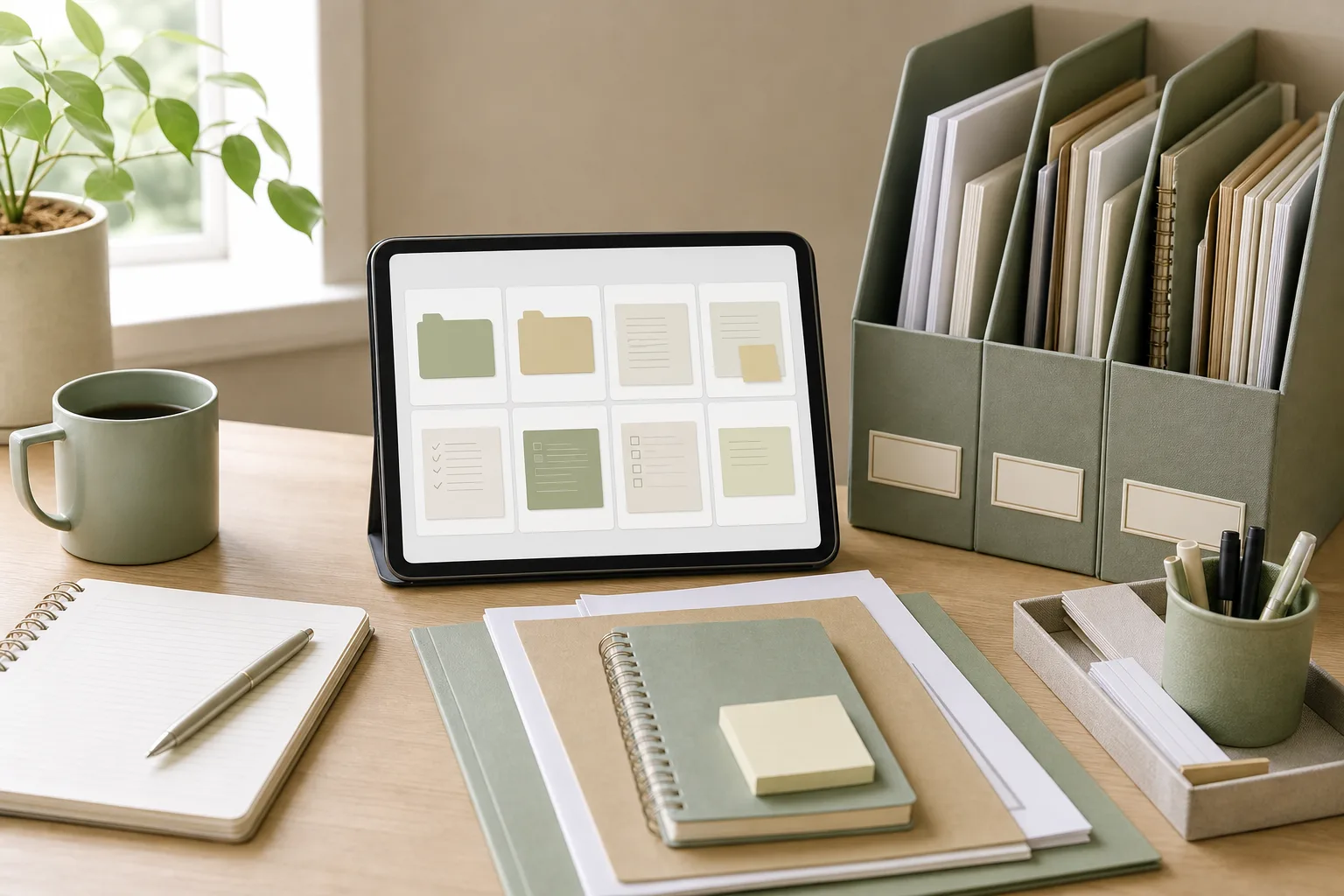
    집중 시간을 지키는 업무 정리 15분 알림 루틴 — 주제 설명 이미지

    알림을 줄이기 전에 정할 세 가지 기준

    알림 정리는 설정을 바꾸는 일부터 시작하지 않습니다. 먼저 어떤 알림을 즉시 확인해야 하는지, 어떤 알림을 모아서 볼 수 있는지, 어떤 알림을 꺼도 되는지 정해야 합니다. 기준이 없으면 알림을 꺼둔 뒤 중요한 요청을 놓치거나, 반대로 모든 알림을 다시 켜는 상황이 생길 수 있습니다.

    1. 즉시 확인할 항목

    현재 맡은 업무의 중단이 필요한 연락만 즉시 확인 대상으로 둡니다. 예를 들면 당일 마감에 직접 영향을 주는 요청, 일정 변경처럼 바로 대응해야 하는 내용, 안전이나 운영에 관련된 긴급 공지 등이 있습니다. 회사와 직무에 따라 기준은 달라질 수 있으므로 팀의 연락 규칙과 충돌하지 않는지 먼저 확인하세요.

    2. 정해진 시간에 확인할 항목

    일반적인 진행 문의, 회의 후속 요청, 검토가 필요한 문서 알림은 모아서 확인할 수 있습니다. 이러한 알림은 도착한 순간 답변하지 않아도 되는지 담당자와 기대 시간을 맞춰두면 판단이 쉬워집니다.

    3. 나중에 정리하거나 끌 수 있는 항목

    업무와 직접 관련이 적은 홍보성 알림, 이미 확인한 상태를 반복해서 알려주는 알림, 읽지 않아도 기록이 남는 단순 업데이트는 우선순위를 낮출 수 있습니다. 다만 자동으로 끄기 전에 실제 업무 누락 가능성을 점검해야 합니다.

    집중 시간을 방해하지 않는 15분 실행표

    15분 루틴은 하루에 한 번 또는 업무 흐름에 맞춰 정한 시간에 실행합니다. 처음에는 오전 업무를 시작하기 전이나 집중 작업을 마친 뒤처럼 경계가 분명한 시점이 관리하기 쉽습니다. 중요한 것은 알림이 올 때마다 확인하는 대신, 확인 시간을 미리 정하는 것입니다.

    시간 단계 할 일
    0~2분 준비 확인할 채널과 오늘의 우선순위를 열고, 새 작업을 바로 시작하지 않을 준비를 합니다.
    2~6분 분류 알림을 즉시 대응, 오늘 처리, 보류 또는 참고로 나눕니다.
    6~12분 실행 짧은 답변을 보내고, 필요한 작업은 다음 행동과 처리 시점을 기록합니다.
    12~15분 점검 누락된 알림이 없는지 확인하고 집중 시간에 다시 울릴 알림을 조정합니다.

    준비: 확인 범위를 제한하기

    먼저 메신저, 이메일, 일정처럼 실제로 확인할 채널만 목록에 적습니다. 여러 창을 동시에 열면 알림을 확인하다가 관련 없는 업무로 이동하기 쉬우므로 한 채널을 끝낸 뒤 다음 채널로 넘어가는 편이 좋습니다. 이 단계에서는 답변을 시작하지 않고, 정해둔 순서만 확인합니다.

    분류: 알림을 네 가지 바구니에 넣기

    각 알림에는 다음 중 하나의 표시를 붙입니다.

    • 즉시 대응: 지금 확인하지 않으면 오늘의 일정이나 다른 사람의 업무가 직접 멈추는 항목
    • 오늘 처리: 오늘 안에 해야 하지만 정해진 집중 시간을 깨지 않아도 되는 항목
    • 보류: 추가 정보나 다른 사람의 답변이 있어야 진행할 수 있는 항목
    • 참고: 기록은 필요하지만 별도 행동이 없는 항목

    분류가 애매하면 ‘가장 늦어도 언제까지 다음 행동을 해야 하는가’를 적어보세요. 기한과 영향이 확인되지 않는 알림을 일률적으로 긴급으로 올리면 우선순위 체계가 쉽게 무너집니다.

    실행: 답변보다 다음 행동을 남기기

    짧게 답할 수 있는 메시지는 처리하되, 긴 설명이나 자료 확인이 필요한 요청은 바로 해결하려 하지 않습니다. 대신 ‘자료 확인 후 오후에 회신’, ‘회의 안건에 추가’, ‘담당자에게 확인 요청’처럼 다음 행동을 한 문장으로 남깁니다. 다음 행동에 담당자와 시점을 함께 적으면 같은 알림을 반복해서 다시 읽는 일을 줄이는 데 도움이 됩니다.

    점검: 집중 시간의 경계를 복구하기

    마지막 3분에는 미처 분류하지 못한 알림과 새로 생긴 알림을 확인합니다. 이후 집중 시간에는 즉시 알림을 허용할 채널만 남기고 나머지는 일시 중지하거나 묶음 확인으로 전환합니다. 조직의 응답 규칙상 항상 연락 가능해야 하는 업무라면 알림을 전부 끄지 말고, 허용할 연락처나 긴급 단어를 별도로 정하는 방식이 적절합니다.

    복사해서 쓰는 업무 체크리스트

    아래 체크리스트는 메모 앱, 문서, 종이 수첩에 옮겨 사용할 수 있습니다. 매번 모든 항목을 길게 기록하기보다, 업무량에 맞춰 필요한 부분만 남기세요.

    [15분 알림 정리]
    날짜:
    오늘의 핵심 업무 1~3개:
    집중 시간:
    확인할 채널: 메신저 / 이메일 / 일정 / 기타
    
    [준비]
    [ ] 확인할 채널을 정했다
    [ ] 오늘의 우선순위를 확인했다
    [ ] 알림을 보자마자 새 작업을 시작하지 않기로 했다
    
    [분류]
    [ ] 즉시 대응 항목을 구분했다
    [ ] 오늘 처리할 항목에 시점을 적었다
    [ ] 보류 항목에 필요한 조건을 적었다
    [ ] 참고 항목을 별도 작업으로 만들지 않았다
    
    [실행]
    [ ] 짧은 답변을 보냈다
    [ ] 긴 업무는 다음 행동으로 쪼갰다
    [ ] 담당자와 회신 시점을 기록했다
    
    [점검]
    [ ] 누락된 채널이 없는지 확인했다
    [ ] 집중 시간에 허용할 알림을 정했다
    [ ] 다음 15분 확인 시간을 정했다

    상황별 예외와 운영 방법

    회의가 많은 날

    회의 사이마다 모든 알림을 확인하려 하면 다음 회의 준비가 늦어질 수 있습니다. 회의 전에는 안건과 관련된 알림만 확인하고, 회의 후에는 메모에서 후속 업무를 먼저 추립니다. 회의 메모에는 결정 사항, 담당자, 기한, 확인이 필요한 질문을 구분해 기록하면 알림을 다시 찾는 시간이 줄어듭니다.

    여러 업무를 동시에 담당하는 날

    프로젝트별로 알림을 따로 처리하기보다, 먼저 긴급도와 기한으로 분류한 뒤 프로젝트 이름을 덧붙이는 방법을 사용할 수 있습니다. 예를 들어 ‘오늘 처리-프로젝트 A-초안 검토’처럼 쓰면 채널별 목록이 흩어지는 것을 막을 수 있습니다. 단, 팀에서 정한 업무 관리 도구나 보고 형식이 있다면 개인 표기보다 공식 체계를 우선하세요.

    답장이 늦어질 수 있는 업무

    알림을 모아서 확인하는 방식을 적용할 때는 상대방이 기다리는 시간을 알 수 있도록 상태를 알려주는 것이 좋습니다. ‘확인 후 오늘 오후에 답변하겠습니다’처럼 가능한 범위를 안내하되, 실제 일정이 바뀌면 다시 알립니다. 정해진 응답 시간이 있는 직무라면 개인 루틴보다 조직 규칙을 먼저 따릅니다.

    주간 점검으로 기준을 조정하기

    하루 루틴만 반복하면 불필요한 알림 기준이 그대로 남을 수 있습니다. 주 1회 10~15분 정도 다음 질문을 점검하세요.

    • 이번 주에 즉시 확인하지 않아 문제가 된 알림이 있었는가?
    • 반대로 즉시 처리했지만 집중 시간을 끊을 필요가 없었던 알림은 무엇인가?
    • 반복해서 같은 내용을 다시 읽은 업무가 있었는가?
    • 다음 행동이나 회신 시점이 빠져서 업무가 밀린 항목은 무엇인가?
    • 팀의 연락 규칙과 개인 알림 설정이 서로 맞는가?

    점검 결과는 알림을 일률적으로 더 줄이는 방향으로 해석하지 말고, 기준을 더 분명하게 만드는 자료로 활용하세요. 예를 들어 특정 채널에서 긴급 요청과 일반 요청이 섞인다면 알림을 전부 끄기보다 긴급 연락 방식과 일반 문의 방식을 구분하는 합의를 먼저 제안할 수 있습니다.

    결론: 알림을 없애기보다 확인 시간을 설계하기

    집중 시간을 보호하는 업무 정리의 출발점은 모든 알림을 차단하는 것이 아닙니다. 15분 동안 준비하고, 분류하고, 필요한 만큼 실행한 뒤, 집중 시간의 경계를 다시 설정하는 흐름이 핵심입니다. 오늘은 네 가지 분류 기준을 완벽하게 적용하기보다 확인할 채널 하나와 다음 행동 기록 방식 하나부터 정해보세요. 업무 특성, 팀의 응답 규칙, 긴급 연락 여부에 따라 알림 기준은 달라질 수 있으므로 일주일간 운영한 뒤 주간 점검에서 조정하는 것이 좋습니다.

    자주 묻는 질문

    알림을 하루에 몇 번 확인해야 하나요?

    정해진 횟수가 있는 것은 아닙니다. 업무의 긴급도와 팀의 응답 규칙에 따라 달라집니다. 다만 무작위로 확인하기보다 15분 단위의 확인 시간을 먼저 정하고, 긴급 연락만 예외로 두면 운영 기준을 만들기 쉽습니다.

    모든 알림을 꺼도 되나요?

    업무상 긴급 연락이나 일정 변경을 놓칠 수 있으므로 모든 알림을 일괄적으로 끄는 방식은 주의해야 합니다. 긴급 연락 채널, 허용할 연락처, 회의 관련 알림처럼 꼭 필요한 항목을 남긴 뒤 나머지를 조정하세요.

    분류만 하고 실제 업무를 처리하지 못하면 어떻게 하나요?

    15분 루틴의 목적은 모든 일을 끝내는 것이 아니라 다음 행동을 분명히 하는 데 있습니다. 처리 시간이 긴 요청은 바로 해결하려 하지 말고 담당자, 필요한 자료, 회신 시점 중 확인된 내용을 기록하세요. 이후 별도의 집중 시간에 해당 업무를 처리합니다.


  • A 15-Minute Notification Tidy-Up for Calmer Focus Blocks

    A 15-Minute Notification Tidy-Up for Calmer Focus Blocks

    작성자: Kai Life Editorial Team

    A calmer focus block often begins with a small notification tidy-up. In 15 minutes, you can list the channels that interrupt your work, sort them by urgency and usefulness, change a few settings, and record a simple follow-up rule. The goal is not to silence every message. It is to make notifications match your priorities, meeting notes, and repeated tasks more closely.

    A 15-Minute Notification Tidy-Up for Calmer Focus Blocks — topic illustration

    Why notification cleanup belongs in work organization

    Notifications compete for attention in several ways. A banner can pull you away from a task, a sound can create pressure to respond, and an unread badge can make a low-priority item feel unfinished. Even when you do not open the message, the interruption can change what you are thinking about.

    A useful work organization system separates three different jobs:

    • Signal: information that may need a timely response.
    • Reference: information worth keeping but not worth interrupting a focus block.
    • Noise: alerts that do not support your current responsibilities.

    Notification settings are only one part of the system. You also need a place for priorities, a way to capture meeting notes, and a review point for repeated tasks. Otherwise, reducing alerts may simply move uncertainty into another inbox or chat channel.

    The 15-minute prepare, sort, act, and review routine

    Set a timer for 15 minutes and work from your actual notification list. Do not redesign your entire workflow during this exercise. The purpose is to make a few clear decisions that you can test during your next focus block.

    Minutes 0–3: Prepare a small inventory

    Open a blank note or use the table below. List the sources that can interrupt you, such as email, team chat, calendar reminders, project tools, phone calls, and task apps. Include both work devices and browser notifications if they are part of your normal day.

    Source What it usually contains Current interruption
    Email Requests, updates, newsletters Sound, banner, badge, or none
    Team chat Direct messages, group conversations Sound, banner, badge, or none
    Calendar Meetings and schedule changes Reminder or popup
    Project tools Assignments, comments, status changes Banner, email, or none

    Keep the inventory short. You can add another source later if it repeatedly interrupts your work.

    Minutes 3–7: Sort alerts by response need

    For each source, ask four questions:

    1. Does this alert require action from me?
    2. Does it require action during a focus block?
    3. Can I review it at a planned time instead?
    4. Would missing it create a meaningful work problem?

    Use the answers to place each alert into one of three levels:

    • Interrupt: keep a notification only when delay could affect an active responsibility or time-sensitive coordination.
    • Batch: turn off immediate alerts and review the source at planned intervals.
    • Mute or remove: stop alerts that provide little useful information, duplicate another channel, or belong to work that is no longer relevant.

    Be specific about the event, not just the application. You may want a calendar reminder while muting routine project activity. You may want direct messages visible while silencing group-channel reactions. This narrower approach can preserve useful signals without treating every event as urgent.

    Minutes 7–11: Act on the easiest settings first

    Change the settings that have a clear benefit and low risk of confusion. Start with repeated alerts, promotional updates, reaction notifications, and duplicate email copies. If a tool supports separate settings for direct messages, mentions, assignments, and general activity, treat those as different choices.

    For focus blocks, consider a simple pattern:

    • Keep calendar events and agreed emergency channels visible.
    • Silence general chat activity and nonessential badges.
    • Move email and project updates into a review window.
    • Leave a clear route for genuinely time-sensitive communication.

    If your workplace has a team response agreement, use that as a constraint. Notification preferences should support coordination rather than create uncertainty about how to reach you.

    Minutes 11–13: Write the response rule

    A setting is easier to use when it has a matching behavior. Write one sentence for each batched source. For example:

    • “I review project updates after my first focus block.”
    • “I check email at the start and end of my workday.”
    • “I capture meeting actions in the task list before moving to the next item.”

    Adjust these examples to your role and team expectations. A response rule can be flexible; it simply tells you when the source is likely to receive attention.

    Minutes 13–15: Review the next focus block

    Choose one upcoming focus block and define its boundary. Record the work item, the expected duration, and the channel you will check when the block ends. This connects notification cleanup with priorities instead of treating it as a device-maintenance task.

    Focus block Priority Notifications allowed Review point
    9:00–9:45 Draft project outline Calendar and agreed urgent channel 9:45 email and team chat
    2:00–2:30 Process meeting notes Calendar only 2:30 project updates

    A copyable notification tidy-up checklist

    Use this checklist when you want a short reset rather than a full productivity overhaul.

    • List the notification sources that interrupt current work.
    • Separate urgent signals from information that can be batched.
    • Identify duplicate alerts across email, chat, and project tools.
    • Keep only the interruptions connected to a real response need.
    • Set a review window for batched messages.
    • Write where meeting notes and action items will be recorded.
    • Choose one priority for the next focus block.
    • Decide when you will check the muted sources.
    • Test the settings during one ordinary work period.
    • Record any missed signal or unnecessary interruption for the next review.

    How to connect notifications with priorities and meeting notes

    Notifications become easier to manage when each one has a destination. A direct request can become an action item. A project update can become reference material. A meeting reminder can point to an agenda or meeting notes. Without a destination, people often keep notifications visible as a substitute for a reliable capture system.

    Try this lightweight sequence:

    1. Capture: write the request, decision, or follow-up in one trusted place.
    2. Clarify: identify the next physical or digital action.
    3. Schedule: give time-sensitive work a place on the calendar or task list.
    4. Close the loop: mark the item complete, hand it off, or record the next review date.

    For meeting notes, use a compact structure: decisions, action items, owner, and follow-up date. This reduces the temptation to keep every meeting notification active just in case something is forgotten.

    Weekly review: adjust the system without starting over

    Reserve a few minutes during a weekly review to inspect how the notification rules performed. The review does not need to become a detailed audit. Look for evidence from your actual work:

    • Which alert interrupted a task without leading to useful action?
    • Which muted source contained information you needed earlier?
    • Did a response rule fit the expectations of your team?
    • Did any repeated task lack a clear owner or review point?
    • Are meeting notes producing visible follow-up actions?

    Make one or two adjustments at a time. If you change every setting at once, it becomes harder to tell which change improved the workflow or created a coordination problem. A small record of changes can help:

    Change tested Reason What to observe Next decision
    Muted group reactions Frequent low-value interruptions Missed decisions or no meaningful impact Keep, revise, or restore
    Bathed email reviews Reduce context switching Response timing and pending work Change review window if needed

    Note that “bathed” in the table should be read as “batched”; the intended action is to review email in planned groups rather than continuously.

    Common mistakes to avoid

    Muting everything at once

    A broad shutdown can hide useful coordination signals. Start with duplicate or low-value alerts, then test the result.

    Confusing visibility with action

    An unread badge shows that information exists; it does not decide what should happen next. Convert meaningful requests into priorities or tasks.

    Creating too many review windows

    If every source receives its own checking schedule, the routine can become another source of fragmentation. Combine sources when that matches how your work is organized.

    Ignoring team expectations

    A personal focus system should still provide a predictable way for colleagues to reach you. Clarify urgent channels and expected response patterns when necessary.

    FAQ

    Should I turn off all notifications during a focus block?

    Not necessarily. Keep the channels connected to active responsibilities or agreed urgent communication, and batch the rest. The appropriate boundary depends on your role, team norms, and the consequences of a delayed response.

    What if I worry that I will miss an important message?

    Use a defined review point and a visible route for time-sensitive requests. You can also test the routine for one focus block before extending it. If a message was missed, adjust the specific alert rather than restoring every notification.

    How often should I repeat the 15-minute routine?

    Repeat it when your projects, team channels, devices, or responsibilities change. A brief weekly review can reveal whether a smaller adjustment is enough.

    Where should meeting notes go?

    Use one consistent location that your team can access when collaboration requires it. The important feature is not a particular tool; it is a clear path from notes to decisions, owners, and follow-up dates.

    Conclusion

    A notification tidy-up is a small work organization practice with a practical boundary: prepare an inventory, sort alerts by response need, act on a few settings, and review the next focus block. Pair those settings with priorities, meeting notes, and a weekly review so that quieter notifications do not create hidden work. Start with 15 minutes, observe what changes, and refine only the parts that need refinement.


  • 업무 정리 15분 루틴: 프로젝트별 파일 관리 규칙

    업무 정리 15분 루틴: 프로젝트별 파일 관리 규칙

    작성자: Kai Life 편집팀

    업무 정리를 시작할 때는 모든 파일을 완벽하게 분류하려 하기보다, 프로젝트를 최상위 기준으로 정하고 파일명과 다음 행동을 일정한 규칙으로 통일하는 것이 먼저입니다. 오늘 바로 실행하려면 15분 동안 현재 파일을 모은 뒤, 프로젝트별 폴더로 옮기고, 파일명을 고치고, 다음 주에 다시 볼 항목을 표시해 보세요.

    업무 정리 15분 루틴: 프로젝트별 파일 관리 규칙 — 주제 설명 이미지

    파일이 많거나 여러 사람이 함께 작업하는 환경에서는 하나의 규칙이 모든 상황에 맞지 않을 수 있습니다. 회사의 보안 정책, 협업 도구, 부서별 보관 기준이 있다면 그 기준을 우선해야 합니다. 이 글은 그 제약 안에서 개인 업무 정리를 단순화하는 기본 틀입니다.

    1. 먼저 정할 것: 프로젝트와 상태를 분리하기

    업무 파일이 찾기 어려워지는 흔한 이유는 프로젝트, 파일 종류, 진행 상태를 한 폴더 체계 안에 섞기 때문입니다. 예를 들어 ‘회의록’, ‘최종본’, ‘급한 것’처럼 폴더를 만들면 여러 프로젝트의 자료가 다시 한곳에 모이기 쉽습니다.

    기본 원칙은 프로젝트를 폴더의 중심으로 두고, 그 안에서 상태나 자료 종류를 제한적으로 나누는 것입니다. 프로젝트가 없는 공통 자료만 별도 폴더에 둡니다.

    구분 권장 기준 예시
    최상위 폴더 진행 중인 프로젝트 또는 반복 업무 프로젝트A, 월간보고
    하위 폴더 자료의 역할이나 단계 01_기획, 02_회의, 03_제출
    파일명 날짜·주제·상태를 짧게 표시 2025-08-01_일정안_검토중
    보관 폴더 완료·중단·참고 자료 99_보관

    하위 폴더는 많이 만들수록 좋은 것이 아닙니다. 자주 쓰는 단계만 남기고, 어디에 저장할지 고민하게 만드는 세부 분류는 줄입니다. 회사에서 이미 정한 폴더 체계가 있다면 이름을 바꾸기보다 파일명 규칙부터 통일하는 방법도 있습니다.

    2. 파일명을 찾기 쉽게 만드는 3가지 규칙

    날짜는 같은 형식으로 쓰기

    날짜가 필요한 파일에는 연도-월-일 순서처럼 자릿수가 일정한 형식을 사용합니다. 월이나 일이 한 자리로 섞이면 정렬 결과가 달라질 수 있으므로 같은 형식을 유지하는 것이 좋습니다. 날짜가 중요한 파일과 그렇지 않은 파일을 구분해, 모든 파일에 날짜를 억지로 붙이지 않아도 됩니다.

    제목보다 목적을 먼저 드러내기

    ‘수정본’, ‘새 파일’, ‘최종’처럼 의미가 모호한 단어만 쓰면 시간이 지난 뒤 내용을 판단하기 어렵습니다. 대신 파일이 무엇을 위한 것인지 표시합니다. 예를 들어 2025-08-01_거래처A_제안서_검토중처럼 날짜, 대상, 문서 목적, 현재 상태를 조합할 수 있습니다.

    상태 표현을 제한하기

    상태 단어는 팀에서 합의한 몇 가지로 제한합니다. 예를 들어 초안, 검토중, 확정, 보관처럼 사용합니다. ‘진짜최종’, ‘최종2’, ‘최종_수정’ 같은 표현은 파일의 순서를 알려주지 못하므로 피하는 편이 낫습니다.

    버전 관리가 필요한 경우에는 파일명에 버전 번호를 추가하되, 번호를 올리는 기준을 먼저 정해야 합니다. 단순한 오탈자 수정까지 새 버전으로 만들지, 외부 공유나 의사결정이 바뀔 때만 버전을 올릴지는 업무 성격에 맞게 정합니다.

    3. 회의 메모를 파일 정리와 연결하기

    회의 메모는 별도의 기록으로 끝내지 말고 프로젝트 폴더 안에 저장합니다. 메모의 핵심은 회의 내용을 모두 옮기는 것이 아니라, 결정된 내용·담당자·기한·다음 행동을 다시 찾을 수 있게 남기는 데 있습니다.

    다음처럼 간단한 구조를 사용할 수 있습니다.

    • 회의 목적: 무엇을 결정하거나 확인하기 위한 자리였는가
    • 결정 사항: 회의 후 바뀐 내용은 무엇인가
    • 할 일: 누가 어떤 결과물을 준비하는가
    • 기한: 정확한 날짜가 정해졌는가
    • 미확정 사항: 추가 확인이 필요한 내용은 무엇인가
    • 다음 확인일: 다시 점검할 시점은 언제인가

    회의 메모 파일명도 프로젝트의 기본 규칙을 따릅니다. 예를 들어 2025-08-01_프로젝트A_주간회의처럼 저장하면 프로젝트 폴더 안에서 날짜순으로 확인하기 쉽습니다. 참석자나 세부 논의가 민감한 경우에는 공유 범위와 접근 권한을 별도로 확인해야 합니다.

    4. 15분 실행 루틴: 준비·분류·실행·점검

    처음부터 전체 저장 공간을 정리하지 말고, 현재 자주 사용하는 프로젝트 하나만 선택합니다. 아래 표는 짧은 시간 안에 정리 규칙을 적용하기 위한 실행표입니다.

    시간 단계 할 일 완료 기준
    0~3분 준비 정리할 프로젝트와 파일 범위를 정하고, 새 폴더 구조를 확인합니다. 이번에 다룰 범위가 한 문장으로 정리됨
    3~7분 분류 파일을 진행 중, 참고, 보관, 확인 필요로 나눕니다. 파일마다 임시 위치가 정해짐
    7~12분 실행 프로젝트 폴더로 이동하고 파일명을 통일합니다. 중복 파일은 열어 본 뒤 처리합니다. 찾을 때 사용할 이름과 위치가 정리됨
    12~15분 점검 다음 행동과 재점검 날짜를 기록하고, 폴더 밖에 남은 파일을 확인합니다. 다음에 할 일이 한두 문장으로 남음

    정리 도중 내용이 불분명한 파일을 발견하면 즉시 삭제하지 말고 확인필요 폴더에 임시 보관할 수 있습니다. 다만 이 폴더가 장기 보관 장소가 되지 않도록 다음 점검일을 함께 기록해야 합니다.

    5. 복사해서 쓰는 업무 정리 체크리스트

    • [ ] 이번에 정리할 프로젝트를 하나만 선택했다.
    • [ ] 프로젝트 폴더 안의 하위 폴더 수를 필요한 수준으로 제한했다.
    • [ ] 파일명에 날짜, 대상, 목적, 상태 중 필요한 요소를 넣었다.
    • [ ] ‘최종’, ‘새 파일’처럼 의미가 모호한 이름을 구체적인 이름으로 바꿨다.
    • [ ] 중복 파일은 내용을 확인한 뒤 보관·삭제·통합 중 하나를 결정했다.
    • [ ] 회의 메모에 결정 사항과 다음 행동을 적었다.
    • [ ] 담당자와 기한이 정해진 일을 별도로 표시했다.
    • [ ] 확인이 필요한 파일에 다음 점검 날짜를 붙였다.
    • [ ] 프로젝트 폴더 밖에 남은 관련 파일을 한 번 확인했다.
    • [ ] 다음 주간 점검 때 확인할 항목을 한곳에 적었다.

    6. 주간 점검으로 규칙 유지하기

    파일 정리는 한 번의 대청소보다 짧은 주간 점검이 더 관리하기 쉽습니다. 주간 점검에서는 모든 파일의 이름을 다시 고치기보다, 새로 생긴 예외와 다음 행동이 사라진 항목을 확인합니다.

    1. 지난주에 변경된 프로젝트 폴더를 먼저 엽니다.
    2. ‘확인필요’, ‘검토중’ 상태의 파일을 확인합니다.
    3. 완료된 자료는 보관 위치로 옮기고, 현재 작업 파일과 분리합니다.
    4. 회의 메모의 미완료 항목을 업무 목록으로 옮깁니다.
    5. 다음 주에 다시 볼 프로젝트와 파일을 두세 개 이내로 정합니다.

    프로젝트가 종료되었다면 폴더 전체를 즉시 삭제하기보다 회사의 보존 기준과 공동 작업자의 접근 필요성을 확인합니다. 개인적으로만 쓰는 자료라도 세금, 계약, 고객 정보처럼 보존이나 접근 제한이 필요한 파일은 일반적인 정리 루틴으로 처리하지 않아야 합니다.

    자주 묻는 질문

    프로젝트가 없는 업무 파일은 어디에 저장하나요?

    반복 업무나 공통 양식처럼 특정 프로젝트에 속하지 않는 자료는 별도의 공통 폴더에 둘 수 있습니다. 다만 공통 폴더를 모든 파일의 임시 보관 장소로 사용하지 않도록, 자료의 목적과 담당 범위를 이름에 드러내는 것이 좋습니다.

    파일을 날짜순으로 관리할까요, 종류별로 관리할까요?

    프로젝트를 먼저 나눈 뒤, 파일명에 필요한 날짜를 넣는 방식이 기본 선택입니다. 날짜가 업무 진행 순서를 판단하는 데 중요하면 날짜를 사용하고, 여러 단계의 결과물을 비교해야 하면 상태나 버전 정보를 추가합니다.

    ‘확인필요’ 파일이 계속 쌓이면 어떻게 하나요?

    각 파일에 확인 담당자와 다음 확인 날짜를 적고, 주간 점검에서 한 번에 결정합니다. 결정할 정보가 없는 파일은 보관 기준을 확인한 뒤 정리하고, 반복해서 미뤄지는 항목은 업무 우선순위 자체를 다시 검토해야 합니다.

    팀원과 파일명을 다르게 쓰고 있다면 무엇부터 바꾸나요?

    전체 규칙을 한 번에 바꾸기보다 새로 만드는 파일부터 공통 형식을 적용하고, 자주 공유하는 폴더의 규칙을 먼저 합의합니다. 예시 파일명 두세 개와 사용하지 않을 표현을 함께 정하면 해석 차이를 줄이는 데 도움이 됩니다.

    마무리

    업무 정리의 목표는 폴더를 보기 좋게 만드는 데만 있지 않습니다. 필요한 파일을 찾고, 회의에서 정한 다음 행동을 확인하고, 다음 점검 시점을 잊지 않도록 만드는 것이 핵심입니다. 오늘은 프로젝트 하나를 골라 15분 루틴을 실행한 뒤, 일주일 후 같은 기준으로 다시 점검해 보세요. 업무 환경이나 보안 기준에 맞지 않는 부분은 그대로 적용하지 말고 조직의 규칙에 맞게 조정하면 됩니다.


  • A 15-Minute Project-Based Rule for Better Work Organization

    A 15-Minute Project-Based Rule for Better Work Organization

    작성자: Kai Life Editorial Team

    For practical work organization, keep active files, notes, and tasks connected to a project, then use a short routine to decide what needs attention next. A useful 15-minute version has four parts: prepare your workspace, sort items by project and action, act on one or two priorities, and review what remains. The goal is not to create a complicated productivity system. It is to make important information easier to locate and the next step easier to recognize.

    A 15-Minute Project-Based Rule for Better Work Organization — topic illustration

    Why organize work files by project?

    Files named only by date, department, or document type can become difficult to interpret later. A project-based rule adds context. Instead of placing every document in a general folder such as “Work” or “Notes,” connect it to the work it supports.

    A simple structure might look like this:

    Work
    ├── Project A
    │   ├── 01_Admin
    │   ├── 02_Notes
    │   ├── 03_Working
    │   └── 04_Final
    ├── Project B
    └── Reference

    The exact folder names are less important than using a structure that matches how you think about current work. A project folder can contain meeting notes, drafts, decisions, reference material, and a short task list. When a file supports more than one project, place it in the project where it is actively used and add a clear link or reference elsewhere when needed.

    Use filenames that answer three questions: what is it, which project does it support, and what stage is it in? For example:

    • ProjectA_2025-03-MeetingNotes_Draft
    • ProjectA_ClientQuestions_Open
    • ProjectA_Proposal_ReviewNeeded

    Choose one naming pattern and keep it readable. Dates can help with sorting, while a short status label can make unfinished work visible. Avoid adding so many labels that filenames become difficult to scan.

    The 15-minute prepare, sort, act, and review routine

    1. Prepare: collect the loose items

    Set a timer for 15 minutes and open the places where work is currently scattered. This may include your downloads folder, desktop, email follow-ups, calendar, chat messages, notebook, and task list. Do not try to process every old item. Focus on items that could affect a current priority, scheduled commitment, or repeated task.

    Create a temporary list called Today’s work items. Add short descriptions rather than copying full messages. For example, write “Confirm delivery date for Project B” instead of pasting an entire email thread. This keeps the review focused on decisions and actions.

    2. Sort: connect each item to a project and state

    For each item, make two decisions:

    1. Which project, area, or reference category does it belong to?
    2. What state is it in: action needed, waiting, reference, or archive?

    Move or rename the related file when the answer is clear. For a meeting note, keep the original discussion record in the relevant project folder and extract action items into the project task list. If an item has no clear project, place it in a temporary review area rather than forcing a misleading category.

    Sorting is also a chance to separate information from action. A document can be useful without requiring work today. Marking it as reference prevents a long list of reading material from competing with an actual deadline.

    3. Act: choose a small number of next actions

    After sorting, select the actions that deserve attention in the current work period. A next action should describe a visible step that can be started without another round of interpretation.

    • “Open the draft and add the missing introduction” is clearer than “Work on report.”
    • “Send two questions to the supplier” is clearer than “Handle supplier issue.”
    • “Compare the three submitted options” is clearer than “Review proposals.”

    Use priorities to distinguish urgency, importance, and dependency. A task may be important but blocked by another person. In that case, the next action may be sending a request or recording a waiting status. A task may be urgent but small enough to complete quickly. Treat these differences as planning information rather than as a reason to assign every item the same priority.

    During the 15-minute routine, act on one quick item or start one meaningful next step. The routine is not intended to replace focused work. It prepares the next work block so that you can begin with less searching.

    4. Review: leave a useful trail

    Use the final minutes to record what changed. Update the task status, add a due date when one is known, and note who is responsible for a waiting item. If a decision was made in a meeting, record the decision in the project notes rather than leaving it buried in a chat thread.

    End with a short “next review” note. This can say when you will check the project again or what condition will trigger the next action. A review note is especially helpful for repeated tasks that do not need daily attention but can be forgotten when they remain outside the main workflow.

    A copyable work organization checklist

    Use the checklist below for a daily reset, a project handoff, or part of a weekly review.

    Step Question Action
    Prepare Where are today’s loose items? Check files, messages, calendar, notes, and task lists.
    Sort Which project or category owns each item? Move, rename, link, or place the item in temporary review.
    Clarify Is this an action, waiting item, reference, or archive? Give it a state that explains what happens next.
    Prioritize What deserves attention in the next work block? Choose a small number of clear next actions.
    Record What decision or status could be forgotten? Update the project note or task list.
    Review When should this be checked again? Add a review point or waiting condition.

    How to handle meeting notes

    Meeting notes become more useful when they separate discussion from follow-up. A compact project note can use four headings:

    • Purpose: why the meeting happened.
    • Decisions: what was agreed or changed.
    • Open questions: what still needs clarification.
    • Actions: the next step, owner, and timing when known.

    Save the note inside the related project folder and use a searchable title with the project name and date. After the meeting, transfer action items to the place where you track work. This avoids relying on the meeting document as the only reminder.

    If a meeting covers several projects, keep one main note with clear subsections or create linked project notes. The better choice depends on how often each project is revisited. The useful test is whether someone can find the decision from the project area without knowing which meeting contained it.

    Make the routine work for repeated tasks

    Repeated tasks often create clutter because the same steps are rewritten from memory. Create a lightweight checklist for recurring work, then keep project-specific details separate. For example, a recurring monthly report may have a general checklist, while the current project folder holds the reporting period, source files, and exceptions.

    Review repeated tasks during a weekly review:

    1. Look for tasks that recur but have no consistent location.
    2. Write the repeatable steps in the order they are normally completed.
    3. Note the information needed to start without searching through old messages.
    4. Keep exceptions and one-time decisions in the relevant project record.

    This approach keeps a reusable checklist from becoming a storage place for every possible detail. General steps belong in the checklist; current facts belong with the active project.

    Common problems and practical adjustments

    Too many folders

    If choosing a folder takes longer than finding the file, reduce the number of categories. Start with active projects, reference, and archive. Add a subfolder only when a project has enough material to benefit from it.

    Unclear ownership

    When an item depends on another person, record the request date and the expected follow-up point if known. Use a waiting label rather than leaving the item mixed with tasks that you can complete immediately.

    Old files mixed with current work

    Move completed material to an archive within the project or to a dated archive area. Keep the active project view focused on files that are still relevant to current decisions.

    Overplanning

    A 15-minute routine can become another project if it includes extensive renaming and redesign. Process the items that affect current work first. Improve the structure gradually when a repeated obstacle appears.

    FAQ

    Should every file belong to a project?

    No. Some material is general reference, personal administration, or temporary information. Use a reference or review category when a project connection is not clear. Revisit temporary items during a weekly review.

    What if one file supports several projects?

    Keep one working copy in the project where it is actively maintained, then link to it from other project notes when your tools support links. If linking is not practical, use a clear filename and record where the current version lives.

    How often should the 15-minute routine happen?

    Use it when scattered items begin to slow decisions, before a busy work block, or as part of a weekly review. The useful frequency depends on how often files, meetings, and priorities change.

    Is a separate task app required?

    No. A document, spreadsheet, notebook, or existing workplace tool can hold the task list. The important features are clear next actions, project context, and a visible review point.

    Conclusion

    A project-based file rule gives work information a clear home, while the prepare, sort, act, and review routine turns that structure into a repeatable habit. Start with the files and priorities that affect current work. Use searchable names, separate actions from reference material, and finish with a short note about what happens next. Over time, this lightweight system can make repeated tasks and meeting follow-ups easier to handle without requiring a large productivity framework.


  • 회의 메모에서 다음 행동만 뽑는 15분 업무 정리 루틴

    회의 메모에서 다음 행동만 뽑는 15분 업무 정리 루틴

    작성자: Kai Life 편집팀

    회의 메모를 업무 정리로 바꾸려면 메모 전체를 다시 요약하기보다, 회의 뒤 15분 동안 ‘누가, 무엇을, 언제까지, 어떤 상태가 되면 완료인지’를 정리하면 됩니다. 핵심은 메모에서 다음 행동만 골라내고, 결정 사항·보류 사항·참고 내용을 별도로 분리하는 것입니다. 아래의 준비·분류·실행·점검 4단계를 순서대로 적용하면 회의 메모를 실행 가능한 업무 체크리스트로 바꿀 수 있습니다.

    회의 메모에서 실행할 일을 옮긴 체크 카드

    회의 메모가 업무로 이어지지 않는 이유

    회의 중에는 많은 내용을 빠르게 기록하지만, 기록 자체에는 실행에 필요한 정보가 빠져 있는 경우가 많습니다. 예를 들어 “자료를 검토한다”는 문장은 누가 검토하는지, 어느 부분을 보는지, 검토가 끝났다고 판단할 기준이 무엇인지 알기 어렵습니다. “다음 주에 다시 논의” 역시 준비할 사람과 준비물, 논의할 날짜가 정해지지 않으면 실제 업무로 연결되기 어렵습니다.

    따라서 회의 직후에는 메모를 잘 보관하는 것보다 행동 단위를 작게 만드는 일이 먼저입니다. 행동 단위가 작아지면 우선순위를 정하기 쉽고, 다른 사람에게 넘길 때도 요청 내용이 분명해집니다. 반대로 메모를 처음부터 완벽하게 정리하려 하면 회의의 모든 맥락을 다시 쓰는 데 시간이 들 수 있습니다.

    15분 업무 정리 루틴 한눈에 보기

    단계 시간 예시 목표 확인 질문
    준비 0~2분 원본 메모와 빈 작업 목록을 준비 이번에 정리할 회의 범위는 어디까지인가?
    분류 2~7분 행동, 결정, 보류, 참고로 나누기 이 내용은 누군가의 행동을 요구하는가?
    실행 7~12분 다음 행동을 담당자와 완료 조건으로 구체화 지금 바로 할 수 있는 동사는 무엇인가?
    점검 12~15분 순서와 의존 관계를 확인하고 전달 내일 다시 읽어도 바로 이해할 수 있는가?

    1단계: 준비하고 메모의 범위를 고정하기

    먼저 회의 메모 원본과 업무 체크리스트를 함께 엽니다. 이때 회의 내용을 새로 요약하려 하지 말고, 한 번에 하나의 회의만 다루는 것이 좋습니다. 여러 회의 메모를 동시에 열면 서로 다른 맥락과 마감 조건이 섞일 수 있습니다.

    준비 단계 체크리스트

    • 회의 날짜와 제목을 확인한다.
    • 회의 메모 원본을 수정하지 않고 별도의 작업 영역을 만든다.
    • 현재 정리할 회의의 범위를 정한다.
    • 담당자와 날짜를 확인할 수 있는 일정, 메신저, 문서 링크를 준비한다.
    • 처음부터 모든 문장을 다듬지 않고 행동 후보에 표시할 준비를 한다.

    이 단계의 목적은 깔끔한 문서 작성이 아니라 분류를 시작할 수 있는 상태를 만드는 것입니다. 메모에 빠진 정보가 있더라도 일단 빈칸을 남겨 두고 다음 단계로 넘어갑니다.

    2단계: 회의 메모를 네 가지 종류로 분류하기

    메모의 각 줄을 읽으며 다음 네 가지 중 하나로 표시합니다. 문장 하나에 여러 내용이 들어 있으면 의미 단위로 나누어 표시합니다.

    • 행동: 누군가 실제로 해야 하는 일입니다. 예를 들어 자료를 보내기, 수치를 확인하기, 초안을 수정하기가 해당합니다.
    • 결정: 회의에서 방향이나 기준이 정해진 내용입니다. 실행에 필요한 경우 결정 사항을 행동 항목에 연결합니다.
    • 보류: 추가 정보, 승인, 일정 확인이 필요해 당장 진행하지 않는 내용입니다.
    • 참고: 배경 설명이나 기록 가치가 있지만 별도의 행동을 요구하지 않는 내용입니다.

    분류할 때 가장 유용한 질문은 “이 문장을 읽은 뒤 누군가가 해야 할 동작이 있는가?”입니다. 답이 아니면 행동 목록에 넣지 않습니다. 참고 내용을 모두 업무로 만들면 체크리스트가 길어지고, 정말 처리해야 할 항목이 묻힐 수 있습니다.

    모호한 문장을 행동으로 바꾸는 예시

    회의 메모 문제 다음 행동으로 바꾸기
    자료를 확인하기 확인할 범위와 담당자가 없음 민지가 3쪽의 수치와 출처를 확인해 수요일 오후까지 댓글로 남긴다.
    일정 다시 보기 무엇을 기준으로 정할지 불명확 준호가 참석 가능 시간을 취합해 금요일 오전에 후보 시간 두 개를 공유한다.
    디자인 수정 필요 수정 대상과 완료 기준이 없음 서연이 첫 화면의 문구와 버튼 위치를 수정한 시안을 다음 검토 전까지 올린다.

    예시에 포함된 이름과 일정은 형식 설명을 위한 예시입니다. 실제 업무에서는 회의에서 확인한 담당자와 날짜를 사용해야 하며, 확인되지 않은 정보를 임의로 채우지 않아야 합니다.

    3단계: 다음 행동을 한 줄 형식으로 고정하기

    행동 항목은 다음 형식으로 작성하면 누락을 줄이는 데 도움이 됩니다.

    [담당자]가 [동사로 시작하는 작업]을 [기한 또는 다음 확인 시점]까지 진행해 [완료 조건 또는 결과물]을 남긴다.

    여기서 가장 중요한 요소는 동사와 완료 조건입니다. “검토”, “준비”, “확인”처럼 범위가 넓은 단어만 적지 말고, 실제로 손을 움직일 수 있는 동작으로 바꿉니다. 예를 들어 “보고서 준비”보다 “지난달 수치를 표에 입력하고 누락된 항목을 표시”가 더 구체적입니다.

    완료 조건을 정하는 질문

    • 결과물은 문서, 표, 메시지, 승인 요청 중 무엇인가?
    • 어느 범위까지 처리해야 하는가?
    • 다른 사람이 확인할 수 있는 흔적은 무엇인가?
    • 완료 후 누구에게 공유해야 하는가?
    • 기한을 정할 수 없다면 다음 상태를 확인할 시점은 언제인가?

    기한이 회의에서 정해지지 않았다면 임의로 마감일을 만들지 말고 “기한 확인 필요”라고 표시합니다. 다만 기한 확인 자체가 다음 행동이라면 담당자를 정해 “담당자가 관련자에게 가능 일정을 확인해 공유한다”처럼 작성할 수 있습니다.

    4단계: 우선순위와 의존 관계를 점검하기

    모든 행동을 같은 순서로 처리할 필요는 없습니다. 먼저 다른 업무가 시작되기 위한 조건인지 확인합니다. 예를 들어 자료 제공이 끝나야 검토를 할 수 있다면, 자료 제공 요청이 앞에 와야 합니다. 승인이나 정보 확인처럼 다른 업무를 막고 있는 항목은 별도로 표시하면 업무 흐름을 파악하기 쉽습니다.

    간단한 우선순위 기준

    • 먼저: 다른 사람의 작업을 시작하게 하거나 일정에 영향을 주는 항목
    • 다음: 정해진 시점 전에 초안이나 확인 결과가 필요한 항목
    • 나중: 당장 흐름을 막지 않으며 보완할 수 있는 항목
    • 대기: 회신, 승인, 자료 등 외부 조건이 충족되어야 하는 항목

    우선순위는 중요해 보이는 정도만으로 정하지 말고, 업무 흐름과 기한을 함께 봅니다. 담당자가 불명확하거나 결정이 필요한 항목은 혼자 진행하지 말고 질문으로 바꿉니다. “어떤 방식으로 할까요?”처럼 넓은 질문보다 “A안과 B안 중 어느 범위로 진행할까요?”처럼 선택지를 좁힌 질문이 다음 판단을 돕습니다.

    복사해서 쓰는 업무 체크리스트

    아래 양식은 회의 직후 메모장이나 문서에 붙여 넣어 사용할 수 있습니다.

    • [ ] 회의 제목과 날짜를 적었다.
    • [ ] 메모를 행동·결정·보류·참고로 나눴다.
    • [ ] 행동마다 담당자를 확인했다.
    • [ ] 각 항목을 동사로 시작했다.
    • [ ] 완료 조건이나 결과물을 적었다.
    • [ ] 기한 또는 다음 확인 시점을 적었다.
    • [ ] 다른 업무를 막고 있는 항목을 표시했다.
    • [ ] 정보가 없는 부분을 임의로 채우지 않고 질문으로 남겼다.
    • [ ] 관련자에게 전달할 항목과 개인 작업을 구분했다.
    • [ ] 다음 점검 시점을 정했다.

    15분 실행표

    시간 할 일 남겨야 할 결과
    0~2분 회의 하나를 선택하고 원본 메모를 연다. 정리 대상이 명확한 상태
    2~5분 행동·결정·보류·참고를 표시한다. 행동 후보 목록
    5~7분 중복 항목을 합치고 참고 내용을 분리한다. 정리된 행동 목록
    7~10분 담당자, 동사, 완료 조건을 채운다. 실행 가능한 문장
    10~12분 기한과 의존 관계를 확인한다. 우선순위가 반영된 목록
    12~15분 질문과 공유 항목을 보내고 다음 점검 시점을 적는다. 전달 또는 대기 상태가 분명한 목록

    15분 안에 모든 빈칸을 채우지 못해도 괜찮습니다. 중요한 것은 빈 정보를 감추지 않고 “담당자 확인 필요”, “기한 미정”, “승인 대기”처럼 상태를 표시하는 것입니다. 상태가 보이면 다음에 무엇을 확인해야 하는지 알 수 있고, 막연한 업무로 남는 것을 줄일 수 있습니다.

    주간 점검에서 확인할 항목

    회의 직후 정리만으로 업무 흐름이 완성되는 것은 아닙니다. 주간 점검 때는 완료되지 않은 항목을 일률적으로 다음 주로 옮기기보다 현재 상태를 다시 판별합니다.

    • 실제로 해야 하는 일인지 다시 확인한다.
    • 담당자가 바뀌었는지 확인한다.
    • 기한이 지났다면 새 기한을 임의로 정하지 않고 관련자와 조율한다.
    • 대기 중인 항목은 기다리는 대상과 다음 연락 시점을 적는다.
    • 작업이 너무 크면 30분 안팎의 첫 행동으로 나눈다.
    • 결정이 바뀌었다면 이전 메모와 현재 기준을 구분한다.

    반복해서 다음 주로 미뤄지는 항목은 우선순위가 낮다는 뜻일 수도 있지만, 범위가 너무 크거나 담당자와 완료 조건이 빠졌다는 신호일 수도 있습니다. 단순히 미완료 표시를 바꾸기보다, 어떤 정보가 부족한지 먼저 확인해 보세요.

    자주 묻는 질문

    회의 중에 이미 할 일을 적었는데도 다시 정리해야 하나요?

    회의 중 메모는 논의 흐름을 따라가기 위한 기록이고, 회의 후 정리는 실행을 위한 변환입니다. 회의 중 적은 항목에 담당자와 완료 조건이 충분하다면 그대로 사용할 수 있습니다. 부족한 부분만 보완하면 되므로 전체 메모를 다시 작성할 필요는 없습니다.

    담당자가 정해지지 않은 업무는 어떻게 하나요?

    담당자를 추측하지 말고 “담당자 확인”을 별도의 다음 행동으로 만드세요. 담당자 확인을 요청할 사람과 확인할 시점을 함께 적으면 대기 상태가 흐려지지 않습니다.

    회의 메모가 너무 길면 어디서부터 보나요?

    결정된 내용, 기한이 언급된 내용, 다른 사람의 작업을 막는 내용을 먼저 찾습니다. 그다음 나머지를 행동·보류·참고로 나누면 긴 메모 전체를 같은 비중으로 읽지 않아도 됩니다.

    기한을 정할 수 없는 업무는 체크리스트에서 빼야 하나요?

    빼기보다 기한 미정 또는 확인 대기로 표시하는 편이 낫습니다. 다만 대기 상태를 그대로 두지 말고, 기한을 확인할 사람과 다음 확인 시점을 적어야 합니다.

    결론: 메모의 양보다 다음 행동의 선명도가 중요합니다

    회의 메모를 잘 정리한다는 것은 회의 내용을 길게 다시 쓰는 일이 아닙니다. 행동·결정·보류·참고를 나눈 뒤, 필요한 행동을 담당자·동사·완료 조건·기한이 있는 한 줄로 바꾸는 과정입니다. 회의 직후 15분 동안 이 작업을 하고, 주간 점검에서 대기와 미완료 상태를 다시 확인하면 업무 목록의 흐름을 파악하기 쉬워집니다.

    처음부터 모든 항목을 완벽하게 만들 필요는 없습니다. 확인되지 않은 정보는 빈칸이나 질문으로 남기고, 지금 진행할 수 있는 가장 작은 다음 행동부터 정리해 보세요.


  • A 15-Minute Routine for Turning Meeting Notes into Next Actions

    A 15-Minute Routine for Turning Meeting Notes into Next Actions

    작성자: Kai Life Editorial Team

    To extract the next action from meeting notes, give yourself 15 minutes to prepare the notes, sort decisions from tasks, define one visible next step for each useful item, and review the results against your priorities. The goal is not to rewrite the meeting. It is to create a short work checklist that tells you what happens next, who is involved, and when the item should be revisited.

    Meeting notes beside a short next-action checklist

    Why meeting notes often fail to become action

    Meeting notes usually contain several kinds of information at once: background, discussion, decisions, open questions, requests, and reminders. Treating every sentence as an action creates a crowded task list. Treating none of it as an action leaves useful commitments hidden in a document.

    A practical work organization system separates information by function. A decision may need to be recorded but not scheduled. An open question may need an owner before it becomes a task. A request may need clarification about scope or timing. The next action is the smallest observable step that moves an item forward.

    For example, “improve the onboarding guide” is a direction, not a clear next action. “Open the current onboarding guide and list the three sections that need review” is easier to start, check, and discuss with someone else.

    The Prepare–Sort–Act–Review framework

    1. Prepare: gather the right material

    Start a 15-minute timer. Open the meeting notes, any linked documents, and your current task list or calendar. Do not collect every possible source. Use only the material needed to understand the commitments from this meeting.

    Write the meeting date and topic at the top of a temporary processing area. If the notes belong to several projects, mark the project beside each relevant line. This prevents a task from becoming detached from its context.

    • Meeting notes or transcript
    • Linked files mentioned during the meeting
    • Your existing task list
    • Calendar, if a deadline or follow-up meeting was discussed

    During this stage, avoid polishing the notes. Read for decisions, responsibilities, dependencies, and unanswered questions.

    2. Sort: place each item in a useful category

    Use four categories. They are broad enough for most routine meetings and specific enough to support a decision.

    Category Question to ask Typical result
    Decision What was agreed? Record it or share it with affected people
    Action What work needs to happen? Create a task with an owner and next step
    Question What is still unclear? Write a clarification action
    Reference What may be useful later? File it without adding a task

    Use a simple test: if the item can be completed, it may be an action; if it changes how work should proceed, it may be a decision; if progress is blocked by missing information, it is probably a question; if it provides context without requiring work, store it as reference.

    Some lines fit more than one category. In that case, keep the decision as a record and create a separate action only if someone needs to do something because of it.

    3. Act: write the smallest useful next action

    Convert each selected item into a verb-led sentence. Include enough detail for your future self or a colleague to recognize the finish line.

    • Weak: “Budget discussion”
    • Clearer: “Compare the two proposed budget options in the planning sheet.”
    • Weak: “Ask about launch date”
    • Clearer: “Send the project lead one message asking which launch date is currently being planned.”

    A useful next action usually contains four parts:

    1. Verb: draft, check, send, compare, schedule, confirm, or decide.
    2. Object: the document, person, issue, or deliverable involved.
    3. Context: the project or meeting that gives the action meaning.
    4. Completion signal: what will be visibly different when the step is done.

    Do not split a single action into many artificial subtasks. Split it when the work changes context, requires a different person, or is likely to be postponed because it feels too vague.

    4. Review: connect actions to priorities

    Use the final few minutes to check whether the extracted actions fit your current priorities. A meeting can create legitimate work that still needs to wait. Moving every action into the current day can hide trade-offs.

    For each action, choose one destination:

    • Do: place it in today’s work if it is small and relevant to the current focus.
    • Schedule: assign a realistic day or time block when timing matters.
    • Delegate or confirm: identify the person responsible and send the needed message.
    • Waiting: record what you are waiting for and the date to check again.
    • Archive: retain the decision or reference without creating a task.

    If an action has no owner, no timing, and no reason to be revisited, it may not be ready for your active list. Keep it as a question or ask for clarification rather than guessing.

    A practical 15-minute action plan

    Time Focus Output
    0–2 minutes Prepare Open notes, links, task list, and calendar
    2–6 minutes Sort Mark decisions, actions, questions, and references
    6–11 minutes Act Write clear next actions with owners where relevant
    11–14 minutes Review Choose do, schedule, delegate, waiting, or archive
    14–15 minutes Close Send one needed follow-up and store the processed notes

    If the notes are unusually long, process only the sections that contain decisions or commitments during this session. Mark the remaining material for a separate reading block. A time limit protects the routine from turning into an open-ended documentation task.

    Copyable meeting-notes checklist

    Copy the following checklist into your notes or task system:

    • [ ] Open the meeting notes and related links.
    • [ ] Mark each line as decision, action, question, or reference.
    • [ ] Remove duplicate or already completed tasks.
    • [ ] Rewrite each useful action with a clear verb.
    • [ ] Add the owner, project, and timing when known.
    • [ ] Identify the smallest step that can be started.
    • [ ] Send any clarification or handoff message.
    • [ ] Put scheduled work on the calendar or task list.
    • [ ] Record waiting items with a review date.
    • [ ] Store the processed notes where the team can find them.

    Examples of common meeting-note problems

    “Team to review the draft”

    This phrase hides both ownership and timing. A clearer version could be “Ask the design reviewer to comment on sections two and three by Thursday.” If the reviewer has not been selected, the first action becomes “Confirm who will review sections two and three.”

    “We should consider changing the process”

    This may be an idea rather than a commitment. Record it as reference unless the meeting created a follow-up. If discussion is needed, write “List the current process steps and bring two change options to the next planning meeting.”

    “Waiting for data”

    Turn the dependency into a trackable item: “Request the missing sales-period data from the reporting owner and check the response next Tuesday.” The action is not to stare at the blocked task; it is to make the dependency visible and reviewable.

    “Finish the presentation”

    Identify the next concrete part: “Add the customer feedback slide using the approved summary.” If several sections remain, choose the first section that affects other work or has a known deadline.

    Weekly review: prevent repeated meeting actions

    During a weekly review, scan actions created from meetings and look for repeated patterns. Similar tasks may indicate a missing template, unclear ownership, or a decision that has not been recorded in a shared location.

    Ask these questions:

    • Which actions are still waiting for the same person or information?
    • Which recurring meeting creates tasks that are already tracked elsewhere?
    • Which decisions should be added to a shared project record?
    • Which actions no longer support a current priority?
    • Which follow-up questions should be placed on the next agenda?

    This review is not a demand to complete every open item. It is a chance to improve visibility and reduce repeated interpretation of the same notes.

    FAQ

    Should every meeting produce a task?

    No. Some meetings produce decisions, information, or references without personal follow-up. Create a task when a specific action, question, handoff, or review is needed.

    What if the owner is unclear?

    Create a clarification action, such as “Confirm who owns the draft revision.” Avoid assigning work to yourself only because your notes are convenient to access.

    How many next actions should I extract?

    Extract the actions supported by the notes and current commitments, then separate active work from scheduled or waiting work. A short, accurate list is easier to review than a complete transcription of every possibility.

    Where should the next actions live?

    Use the task or project system your team already checks. The important properties are visibility, an identifiable owner, and a way to review timing. If the team uses several systems, record the source location in the action.

    What if I cannot process the notes within 15 minutes?

    Capture only decisions, clear commitments, and blockers in the first session. Mark the remaining sections for another block. A limited first pass is more useful than leaving urgent actions mixed into an unprocessed document.

    Conclusion

    A reliable meeting-notes routine does not require a complex productivity platform. Prepare the relevant material, sort each item, write the smallest useful next action, and review it against your priorities. After 15 minutes, you should have a focused work checklist rather than a second copy of the meeting. Use the same framework after recurring meetings, then use the weekly review to improve ownership, timing, and follow-up.


  • 반복 업무를 체크리스트로 바꾸는 기준과 15분 실행 루틴

    반복 업무를 체크리스트로 바꾸는 기준과 15분 실행 루틴

    작성자: Kai Life 편집팀

    반복 업무를 정리할 때는 모든 일을 자세히 기록하기보다, 다시 발생하는 일을 찾아 같은 순서와 기준으로 처리할 수 있게 만드는 것이 핵심입니다. 먼저 해야 할 일을 수집하고, 중요도와 반복성을 기준으로 나눈 뒤, 15분 안에 실행할 항목을 정해 마지막에 누락 여부를 점검하세요. 이 글에서는 이 과정을 준비·분류·실행·점검의 4단계로 정리합니다.

    반복 업무를 위한 체크리스트와 정리된 문서

    반복 업무를 체크리스트로 바꿔야 하는 기준

    모든 업무가 체크리스트에 적합한 것은 아닙니다. 매번 판단이 크게 달라지는 창의 업무나 긴급 대응은 세부 절차를 고정하기 어렵습니다. 반면 다음과 같은 업무는 체크리스트로 바꾸기 좋습니다.

    • 매일 또는 매주 비슷한 시점에 발생하는 업무
    • 순서를 빼먹으면 재작업이 생기는 업무
    • 완료 여부를 짧은 문장으로 확인할 수 있는 업무
    • 회의 후속 조치, 자료 확인, 보고 전 검토처럼 반복되는 업무
    • 담당자나 마감일이 달라도 기본 절차가 크게 변하지 않는 업무

    좋은 체크리스트는 업무 전체를 장황하게 설명하지 않습니다. 실제로 실행할 수 있는 동사로 시작하고, 한 항목에 한 가지 행동만 담습니다. 예를 들어 ‘회의 준비를 잘하기’보다 ‘회의 안건과 결정이 필요한 내용을 확인하기’가 실행 기준에 가깝습니다.

    업무 정리 4단계: 준비·분류·실행·점검

    1단계: 준비 — 머릿속 작업을 한곳에 모으기

    처음부터 완벽한 분류를 하려고 하면 정리 자체가 길어질 수 있습니다. 우선 종이, 메모 앱, 문서 등 한 곳을 정해 현재 떠오르는 반복 업무를 적습니다. 이때는 중요도를 판단하기보다 업무의 이름과 발생 시점을 간단히 기록하는 것이 좋습니다.

    • 업무 이름: 무엇을 하는가
    • 발생 시점: 매일, 매주, 특정 요일 등 언제 하는가
    • 완료 기준: 무엇을 확인하면 끝났다고 볼 수 있는가
    • 연결 대상: 누구에게 공유하거나 무엇을 참고해야 하는가

    회의 메모도 이 단계에서 함께 모을 수 있습니다. 회의에서 나온 모든 내용을 체크리스트로 옮기는 대신, 결정된 일과 후속 조치만 따로 추리세요. 의견, 배경 설명, 보류된 내용은 업무 항목과 구분해 두면 목록이 불필요하게 커지는 것을 줄일 수 있습니다.

    2단계: 분류 — 우선순위와 반복성으로 나누기

    업무를 분류할 때는 ‘급한가’와 ‘반복되는가’를 따로 봅니다. 급하지만 일회성인 일은 당일 실행 목록으로 보내고, 반복되면서 누락 위험이 있는 일은 체크리스트 후보로 둡니다. 반대로 반복되더라도 가치가 낮거나 현재 역할과 맞지 않는 일은 유지할 필요가 있는지 검토합니다.

    구분 판단 질문 처리 방법
    반복·중요 정해진 주기로 다시 발생하는가? 정기 체크리스트로 고정
    긴급·일회성 이번 시점에만 처리해야 하는가? 오늘의 실행 목록에 배치
    반복·낮은 가치 계속 유지할 이유가 분명한가? 삭제·축소·자동화 가능성 검토
    모호한 업무 완료 상태를 설명할 수 있는가? 결과물과 완료 기준부터 정의

    우선순위를 정할 때 모든 항목에 1순위, 2순위를 붙일 필요는 없습니다. 먼저 오늘 하지 않으면 일정이나 다른 사람의 업무에 영향을 주는 항목을 찾고, 그다음 정해진 주기를 지키면 되는 업무를 배치합니다. 나머지는 다음 점검 때 다시 판단할 수 있도록 보류 목록에 둡니다.

    3단계: 실행 — 15분 안에 처리 단위를 작게 만들기

    체크리스트가 실행되지 않는 이유 중 하나는 항목이 너무 크기 때문입니다. ‘주간 보고서 작성’처럼 결과물만 적으면 시작 지점이 모호할 수 있습니다. 대신 자료 수집, 수치 확인, 초안 작성, 검토 요청처럼 실제 행동 단위로 나눕니다.

    다음은 업무 정리를 위한 15분 실행표입니다. 시간을 엄격한 규칙으로 보기보다, 짧은 시간 안에 목록을 선별하고 시작하기 위한 기준으로 활용하세요.

    시간 할 일 남겨야 할 결과
    0~3분 새로 들어온 요청과 메모를 한곳에 모으기 오늘 확인할 목록
    3~6분 마감, 영향 범위, 반복 여부로 분류하기 오늘·정기·보류 목록
    6~11분 오늘 처리할 항목의 첫 행동을 시작하기 초안, 확인 결과, 요청 메시지 중 하나
    11~13분 막힌 항목의 원인과 다음 행동 적기 대기 대상 또는 질문
    13~15분 체크 표시와 다음 점검 시점 기록하기 업데이트된 체크리스트

    15분 안에 업무가 끝나지 않아도 괜찮습니다. 이 루틴의 목적은 큰 업무를 모두 완료하는 것이 아니라, 다음 행동이 보이도록 업무를 작게 쪼개는 데 있습니다. 시간이 부족한 날에는 15분을 준비와 우선순위 결정에만 사용하고, 실행은 별도의 일정으로 넘길 수 있습니다.

    4단계: 점검 — 체크 표시보다 기준을 수정하기

    체크리스트를 일정 기간 사용한 뒤에는 완료한 개수보다 목록의 품질을 봅니다. 같은 항목에서 반복적으로 멈춘다면 담당자의 의지보다 항목 설계에 문제가 있을 수 있습니다. 업무가 너무 크거나, 필요한 자료가 앞 단계에 없거나, 완료 기준이 불명확한지 확인하세요.

    • 항목 하나에 행동이 두 개 이상 들어가 있지 않은가?
    • 완료 여부를 다른 사람이 봐도 판단할 수 있는가?
    • 대기 중인 업무와 내가 직접 할 업무가 섞여 있지 않은가?
    • 회의 메모에서 실행 항목과 참고 내용을 분리했는가?
    • 더 이상 필요하지 않은 반복 업무가 남아 있지 않은가?

    복사해서 쓰는 업무 체크리스트

    아래 양식은 특정 도구에 종속되지 않도록 단순하게 구성했습니다. 문서나 메모 앱에 붙여 넣은 뒤, 자신의 업무 이름과 주기를 추가하세요.

    [오늘의 업무 정리]
    □ 새 요청과 회의 메모를 한곳에 모았다.
    □ 오늘 마감되거나 다른 업무에 영향을 주는 항목을 먼저 표시했다.
    □ 반복 업무와 일회성 업무를 구분했다.
    □ 각 항목을 한 번에 실행할 수 있는 행동으로 나눴다.
    □ 첫 행동을 시작했고, 결과 또는 진행 상태를 남겼다.
    □ 다른 사람의 확인이 필요한 항목을 따로 표시했다.
    □ 보류 사유와 다음 점검 시점을 적었다.
    
    [주간 점검]
    □ 이번 주 반복 업무 중 누락된 항목을 확인했다.
    □ 자주 멈춘 체크 항목의 표현을 수정했다.
    □ 불필요하거나 중복된 항목을 줄였다.
    □ 다음 주에도 유지할 업무와 다시 판단할 업무를 구분했다.

    업무 체크리스트를 오래 유지하는 방법

    체크리스트는 길어질수록 관리 비용이 커집니다. 처음에는 반드시 필요한 항목만 넣고, 실제로 누락이 발생했을 때 한 항목씩 추가하는 방식이 적절합니다. 반대로 여러 주기 동안 의미 없이 남아 있는 항목은 삭제 후보로 봅니다.

    또한 체크리스트의 위치를 자주 바꾸지 않는 것이 좋습니다. 오늘의 업무, 정기 업무, 대기 업무를 서로 다른 장소에 흩어 놓으면 목록을 찾는 시간이 늘어날 수 있습니다. 하나의 문서 안에서 제목이나 표로 구분하거나, 사용하는 도구의 구조에 맞춰 세 영역으로 고정해 보세요.

    예외도 미리 적어 두면 판단이 쉬워집니다. 예를 들어 자료가 도착하지 않았을 때는 ‘완료’로 표시하지 않고 ‘대기’로 옮기며, 긴급 요청이 들어오면 오늘 목록의 순서를 다시 정한다는 식입니다. 예외를 숨기지 않고 상태로 표현하면 체크 표시가 실제 완료를 과장하는 일을 줄일 수 있습니다.

    자주 묻는 질문

    체크리스트 항목은 몇 개가 적당한가요?

    정해진 최적 개수보다 중요한 것은 한 번에 검토할 수 있는 크기입니다. 목록을 보고 무엇부터 할지 다시 고민하게 된다면 오늘 목록과 정기 목록을 분리하고, 오늘 처리할 항목만 앞에 두세요.

    반복 업무가 매번 조금씩 달라지면 어떻게 하나요?

    변하지 않는 공통 단계만 체크리스트로 고정하고, 상황에 따라 달라지는 부분은 선택 항목이나 메모란으로 남깁니다. 모든 예외를 본문 항목으로 넣으면 체크리스트가 복잡해질 수 있습니다.

    회의 메모를 업무 목록으로 바꿀 때 무엇을 남겨야 하나요?

    담당자, 행동, 결과물, 기한이 확인되는 내용부터 옮기세요. 이 중 하나라도 빠져 있다면 바로 완료 처리하지 말고, 추가 확인이 필요한 항목으로 표시하는 편이 안전합니다.

    마무리

    업무 정리의 목표는 목록을 많이 만드는 것이 아니라 반복되는 판단을 줄이고 다음 행동을 선명하게 만드는 데 있습니다. 준비 단계에서 업무를 모으고, 반복성과 우선순위로 분류한 뒤, 15분 동안 작은 행동을 시작하고, 주간 점검에서 기준을 고치세요. 오늘은 현재 자주 빠뜨리는 반복 업무 하나만 골라 완료 기준과 첫 행동을 적는 것부터 시작해도 충분합니다.


THANKS KAI CONTACT

WeChat

위챗에서 QR코드를 스캔해 주세요.
Scan the QR code in WeChat.

Thanks Kai WeChat contact QR code위챗 열기 / Open WeChat