작성자: Kai Life Editorial Team
For practical work organization, keep active files, notes, and tasks connected to a project, then use a short routine to decide what needs attention next. A useful 15-minute version has four parts: prepare your workspace, sort items by project and action, act on one or two priorities, and review what remains. The goal is not to create a complicated productivity system. It is to make important information easier to locate and the next step easier to recognize.
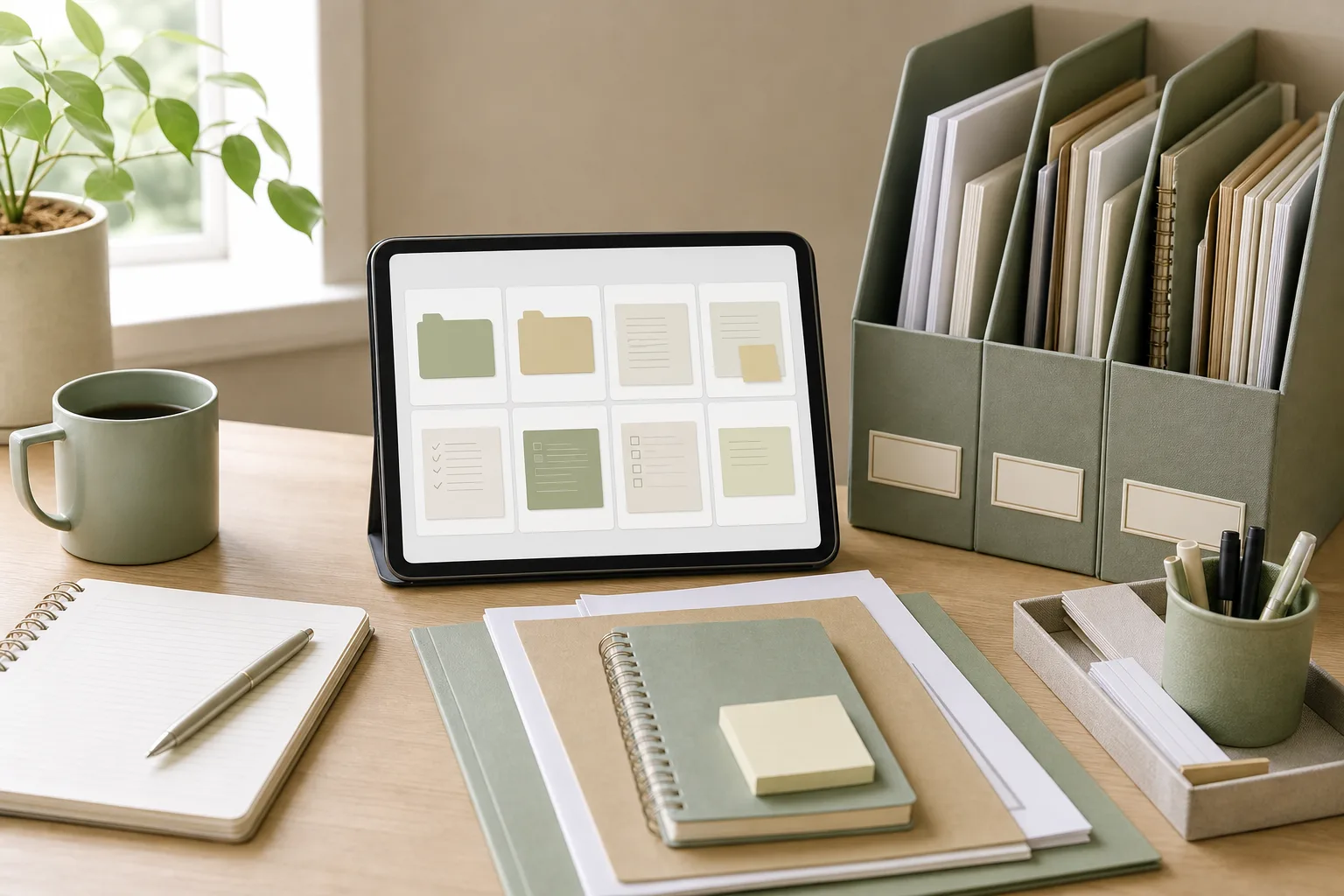
Why organize work files by project?
Files named only by date, department, or document type can become difficult to interpret later. A project-based rule adds context. Instead of placing every document in a general folder such as “Work” or “Notes,” connect it to the work it supports.
A simple structure might look like this:
Work
├── Project A
│   ├── 01_Admin
│   ├── 02_Notes
│   ├── 03_Working
│   └── 04_Final
├── Project B
└── Reference
The exact folder names are less important than using a structure that matches how you think about current work. A project folder can contain meeting notes, drafts, decisions, reference material, and a short task list. When a file supports more than one project, place it in the project where it is actively used and add a clear link or reference elsewhere when needed.
Use filenames that answer three questions: what is it, which project does it support, and what stage is it in? For example:
ProjectA_2025-03-MeetingNotes_DraftProjectA_ClientQuestions_OpenProjectA_Proposal_ReviewNeeded
Choose one naming pattern and keep it readable. Dates can help with sorting, while a short status label can make unfinished work visible. Avoid adding so many labels that filenames become difficult to scan.
The 15-minute prepare, sort, act, and review routine
1. Prepare: collect the loose items
Set a timer for 15 minutes and open the places where work is currently scattered. This may include your downloads folder, desktop, email follow-ups, calendar, chat messages, notebook, and task list. Do not try to process every old item. Focus on items that could affect a current priority, scheduled commitment, or repeated task.
Create a temporary list called Today’s work items. Add short descriptions rather than copying full messages. For example, write “Confirm delivery date for Project B” instead of pasting an entire email thread. This keeps the review focused on decisions and actions.
2. Sort: connect each item to a project and state
For each item, make two decisions:
- Which project, area, or reference category does it belong to?
- What state is it in: action needed, waiting, reference, or archive?
Move or rename the related file when the answer is clear. For a meeting note, keep the original discussion record in the relevant project folder and extract action items into the project task list. If an item has no clear project, place it in a temporary review area rather than forcing a misleading category.
Sorting is also a chance to separate information from action. A document can be useful without requiring work today. Marking it as reference prevents a long list of reading material from competing with an actual deadline.
3. Act: choose a small number of next actions
After sorting, select the actions that deserve attention in the current work period. A next action should describe a visible step that can be started without another round of interpretation.
- “Open the draft and add the missing introduction” is clearer than “Work on report.”
- “Send two questions to the supplier” is clearer than “Handle supplier issue.”
- “Compare the three submitted options” is clearer than “Review proposals.”
Use priorities to distinguish urgency, importance, and dependency. A task may be important but blocked by another person. In that case, the next action may be sending a request or recording a waiting status. A task may be urgent but small enough to complete quickly. Treat these differences as planning information rather than as a reason to assign every item the same priority.
During the 15-minute routine, act on one quick item or start one meaningful next step. The routine is not intended to replace focused work. It prepares the next work block so that you can begin with less searching.
4. Review: leave a useful trail
Use the final minutes to record what changed. Update the task status, add a due date when one is known, and note who is responsible for a waiting item. If a decision was made in a meeting, record the decision in the project notes rather than leaving it buried in a chat thread.
End with a short “next review” note. This can say when you will check the project again or what condition will trigger the next action. A review note is especially helpful for repeated tasks that do not need daily attention but can be forgotten when they remain outside the main workflow.
A copyable work organization checklist
Use the checklist below for a daily reset, a project handoff, or part of a weekly review.
| Step | Question | Action |
|---|---|---|
| Prepare | Where are today’s loose items? | Check files, messages, calendar, notes, and task lists. |
| Sort | Which project or category owns each item? | Move, rename, link, or place the item in temporary review. |
| Clarify | Is this an action, waiting item, reference, or archive? | Give it a state that explains what happens next. |
| Prioritize | What deserves attention in the next work block? | Choose a small number of clear next actions. |
| Record | What decision or status could be forgotten? | Update the project note or task list. |
| Review | When should this be checked again? | Add a review point or waiting condition. |
How to handle meeting notes
Meeting notes become more useful when they separate discussion from follow-up. A compact project note can use four headings:
- Purpose: why the meeting happened.
- Decisions: what was agreed or changed.
- Open questions: what still needs clarification.
- Actions: the next step, owner, and timing when known.
Save the note inside the related project folder and use a searchable title with the project name and date. After the meeting, transfer action items to the place where you track work. This avoids relying on the meeting document as the only reminder.
If a meeting covers several projects, keep one main note with clear subsections or create linked project notes. The better choice depends on how often each project is revisited. The useful test is whether someone can find the decision from the project area without knowing which meeting contained it.
Make the routine work for repeated tasks
Repeated tasks often create clutter because the same steps are rewritten from memory. Create a lightweight checklist for recurring work, then keep project-specific details separate. For example, a recurring monthly report may have a general checklist, while the current project folder holds the reporting period, source files, and exceptions.
Review repeated tasks during a weekly review:
- Look for tasks that recur but have no consistent location.
- Write the repeatable steps in the order they are normally completed.
- Note the information needed to start without searching through old messages.
- Keep exceptions and one-time decisions in the relevant project record.
This approach keeps a reusable checklist from becoming a storage place for every possible detail. General steps belong in the checklist; current facts belong with the active project.
Common problems and practical adjustments
Too many folders
If choosing a folder takes longer than finding the file, reduce the number of categories. Start with active projects, reference, and archive. Add a subfolder only when a project has enough material to benefit from it.
Unclear ownership
When an item depends on another person, record the request date and the expected follow-up point if known. Use a waiting label rather than leaving the item mixed with tasks that you can complete immediately.
Old files mixed with current work
Move completed material to an archive within the project or to a dated archive area. Keep the active project view focused on files that are still relevant to current decisions.
Overplanning
A 15-minute routine can become another project if it includes extensive renaming and redesign. Process the items that affect current work first. Improve the structure gradually when a repeated obstacle appears.
FAQ
Should every file belong to a project?
No. Some material is general reference, personal administration, or temporary information. Use a reference or review category when a project connection is not clear. Revisit temporary items during a weekly review.
What if one file supports several projects?
Keep one working copy in the project where it is actively maintained, then link to it from other project notes when your tools support links. If linking is not practical, use a clear filename and record where the current version lives.
How often should the 15-minute routine happen?
Use it when scattered items begin to slow decisions, before a busy work block, or as part of a weekly review. The useful frequency depends on how often files, meetings, and priorities change.
Is a separate task app required?
No. A document, spreadsheet, notebook, or existing workplace tool can hold the task list. The important features are clear next actions, project context, and a visible review point.
Conclusion
A project-based file rule gives work information a clear home, while the prepare, sort, act, and review routine turns that structure into a repeatable habit. Start with the files and priorities that affect current work. Use searchable names, separate actions from reference material, and finish with a short note about what happens next. Over time, this lightweight system can make repeated tasks and meeting follow-ups easier to handle without requiring a large productivity framework.